Setup
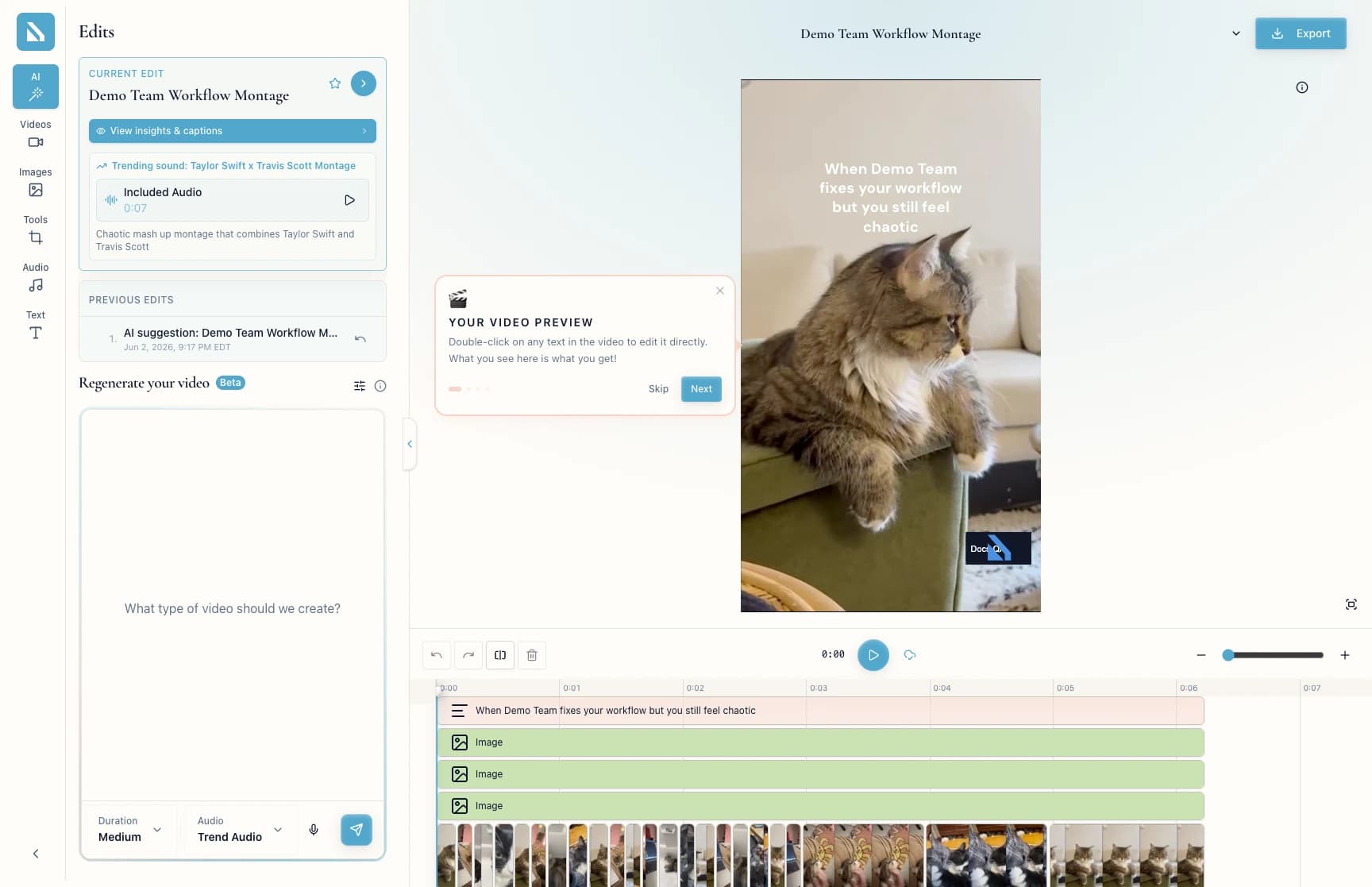
- Sign in to a workspace with at least one project that has source videos, and open that project in the editor.
- Required files or assets: none — Bevyl generates the edit from the project's source videos.
Step by step
1. Open the project
From Projects, open the project you want to improve — an existing project with source videos, not the Create project card.
2. Open the Edits panel
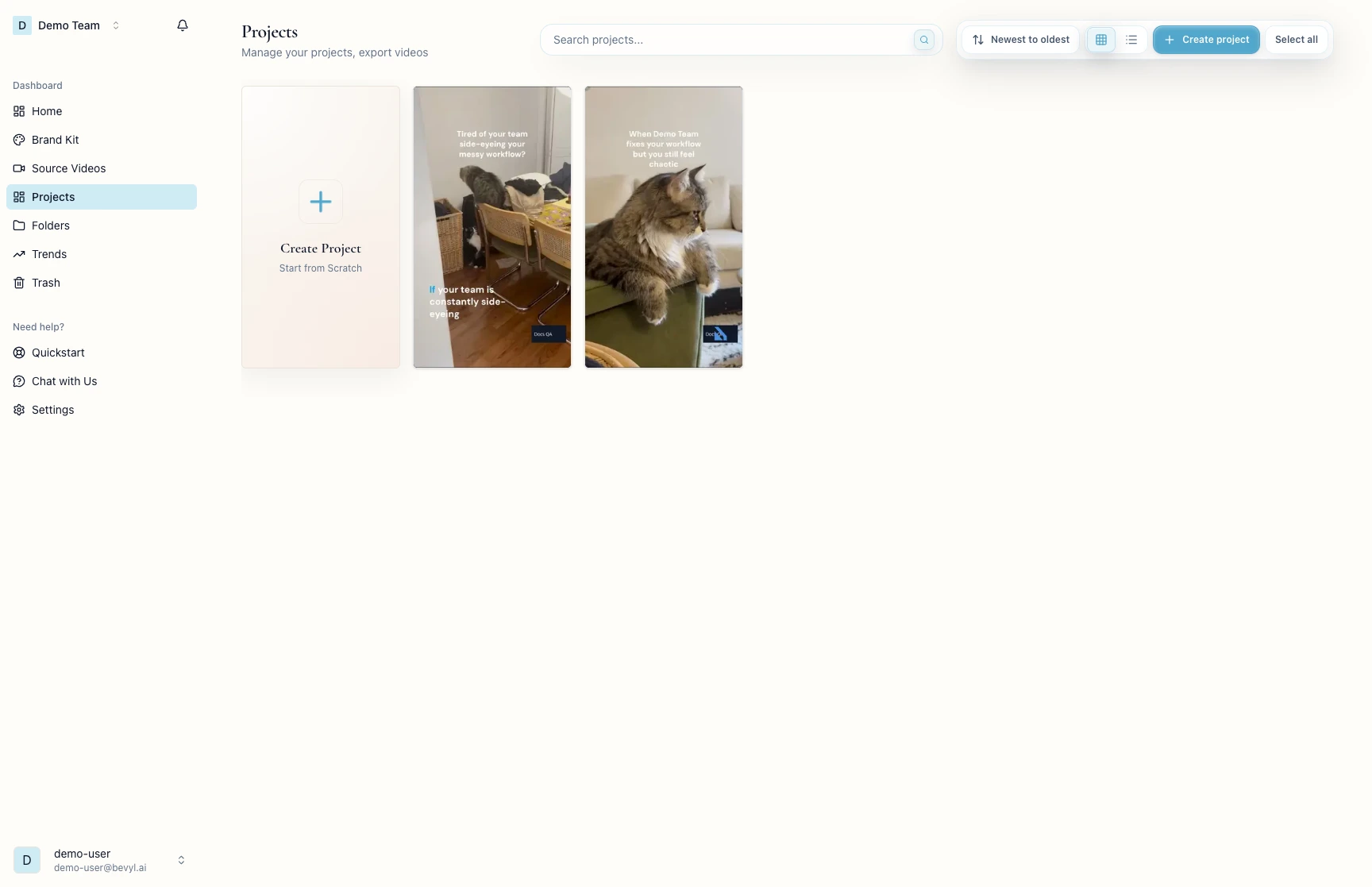
In the editor, click Edits in the left panel bar.
CURRENT EDIT names the AI edit on the timeline. Click View insights & captions to review it, or scroll to Regenerate your video to make a new one.
3. Generate a fresh edit
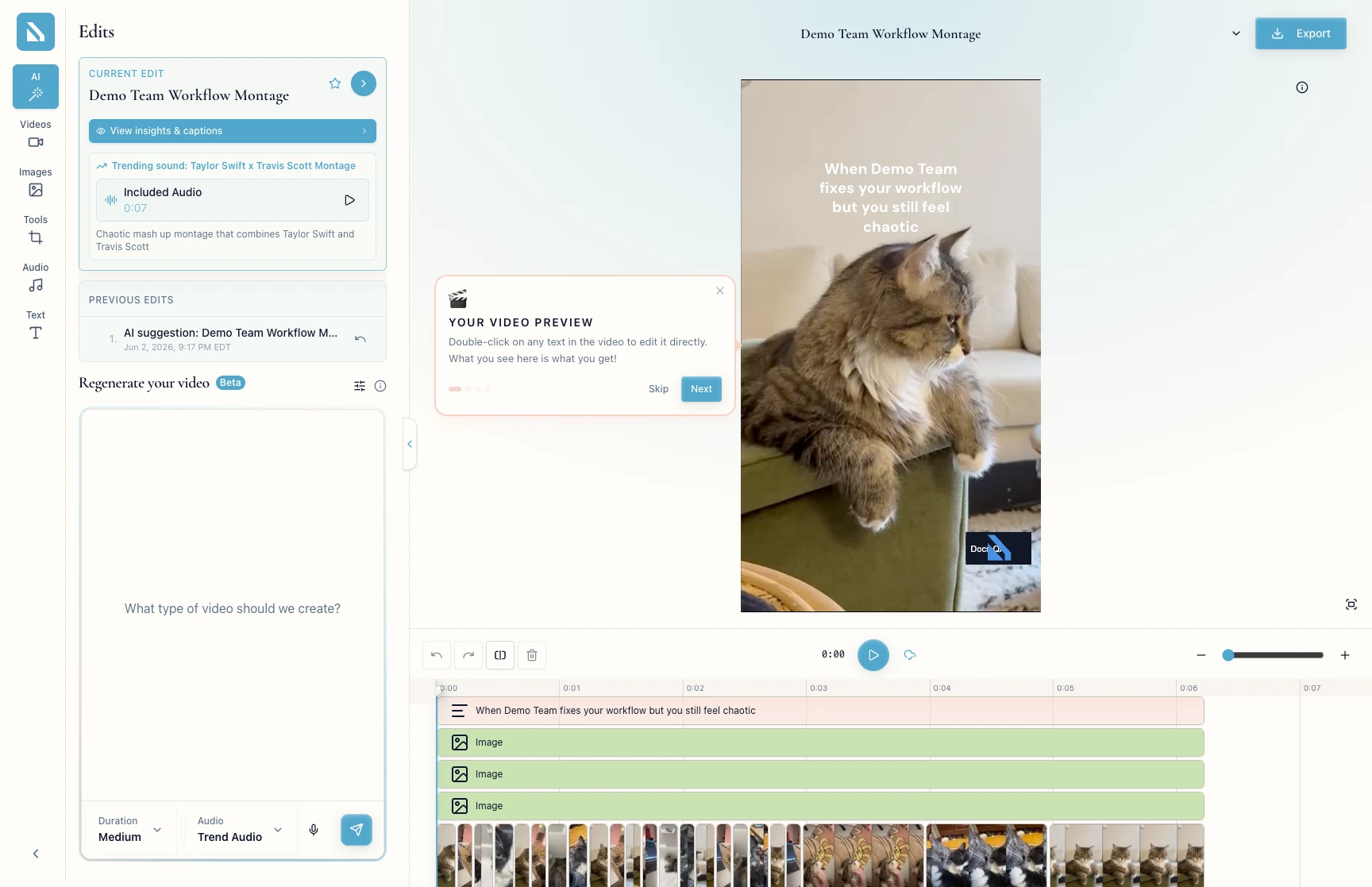
In Regenerate your video, type your direction in What type of video should we create?.
Set Duration and Audio, then click the submit arrow.
Bevyl generates a new suggestion. If your source videos are still analyzing, it waits for them.
4. Review the suggestion
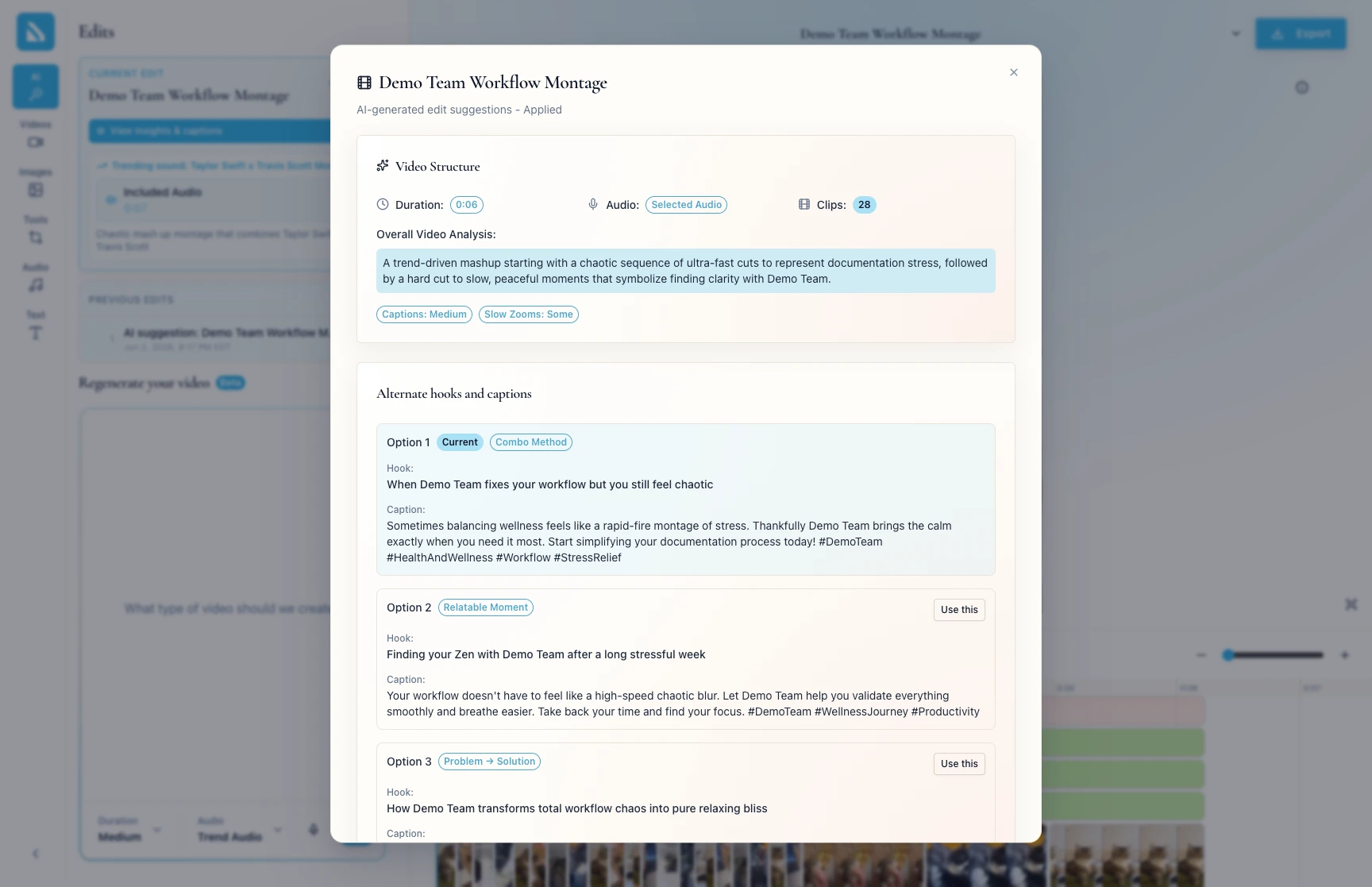
On the CURRENT EDIT card, click View insights & captions.
The dialog shows the video idea, Video Structure, duration, audio type, clip count, and ALTERNATE HOOKS AND CAPTIONS.
5. Apply the edit
To make a suggestion from PREVIOUS EDITS current, click Apply on its card.
Bevyl shows Applying AI edits…, then confirms AI edits applied successfully!.
6. Try another hook or caption
Open View insights & captions again.
In ALTERNATE HOOKS AND CAPTIONS, click Use this on the option you prefer.
If something blocks you
No videos found to suggest edits: add source videos to the project first.Apply is missing on a card: that suggestion is already the CURRENT EDIT.Failed to apply AI edits: keep the editor open and retry; if it repeats, contact support with the project name.
Done
The suggestion you chose is on the timeline as the CURRENT EDIT.
Next actions:
- Play the timeline from the first hook.
- Open
Export when the edit is ready to share.
Related articles