Setup
- Sign in to the workspace that owns the project, and open the project in the editor.
- Required files or assets: none. The project needs captions, text overlays, or spoken audio that can generate captions.
Step by step
1. Open the Text panel
Click Text in the left toolbar.
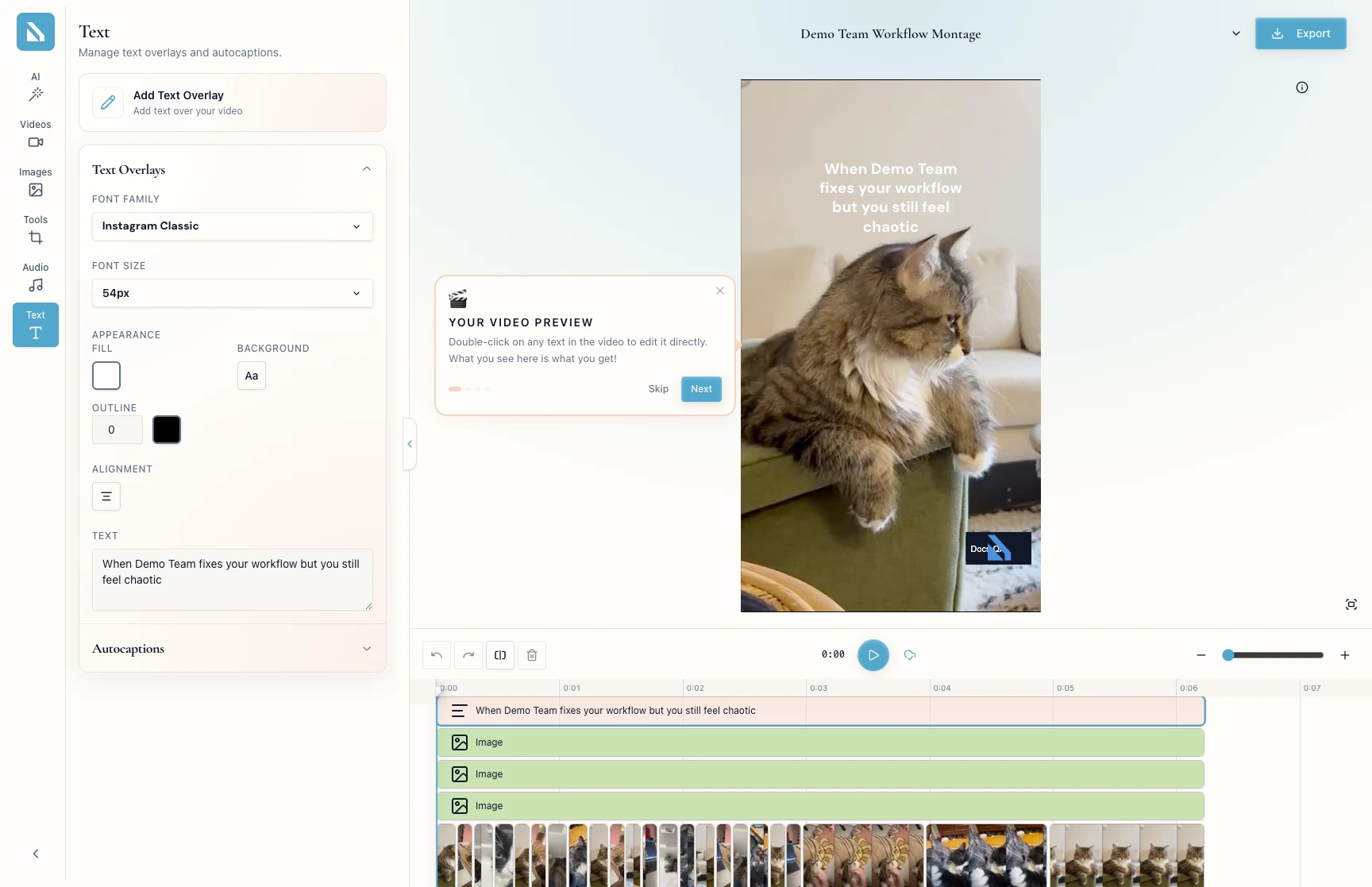
The panel shows Add Text Overlay, Text Overlays, and Autocaptions.
2. Fix a text overlay
Expand Text Overlays.
Set Font Family and Font Size, and adjust the text and outline colors with the pickers. Select a text clip in the timeline to restyle it, or click Add Text Overlay for a new one.
3. Fix autocaption style
Expand Autocaptions.
Use the same Font Family, Font Size, and color controls to keep captions legible over the footage.
If something blocks you
Text is missing: you are on Home or a project card, not in the editor.- A text clip ignores your changes: select it in the timeline first.
Autocaptions is empty: the project has no generated captions — check that the audio source contains spoken dialogue.
Done
Captions and overlays read clearly in the preview.
Next actions:
- Play the full edit from the first hook.
- Click
Export when captions, text, pacing, and audio are ready.
Related articles
