Setup
- Sign in to the workspace that owns the finished project.
- Open any project that is ready to export —
Home shows a banner when projects are waiting. - Required files or assets: none; the source footage is already attached to the project.
Step by step
1. Find a ready project
Go to Home. The top banner reads You have N projects ready to export; each finished card carries a Ready to export badge.
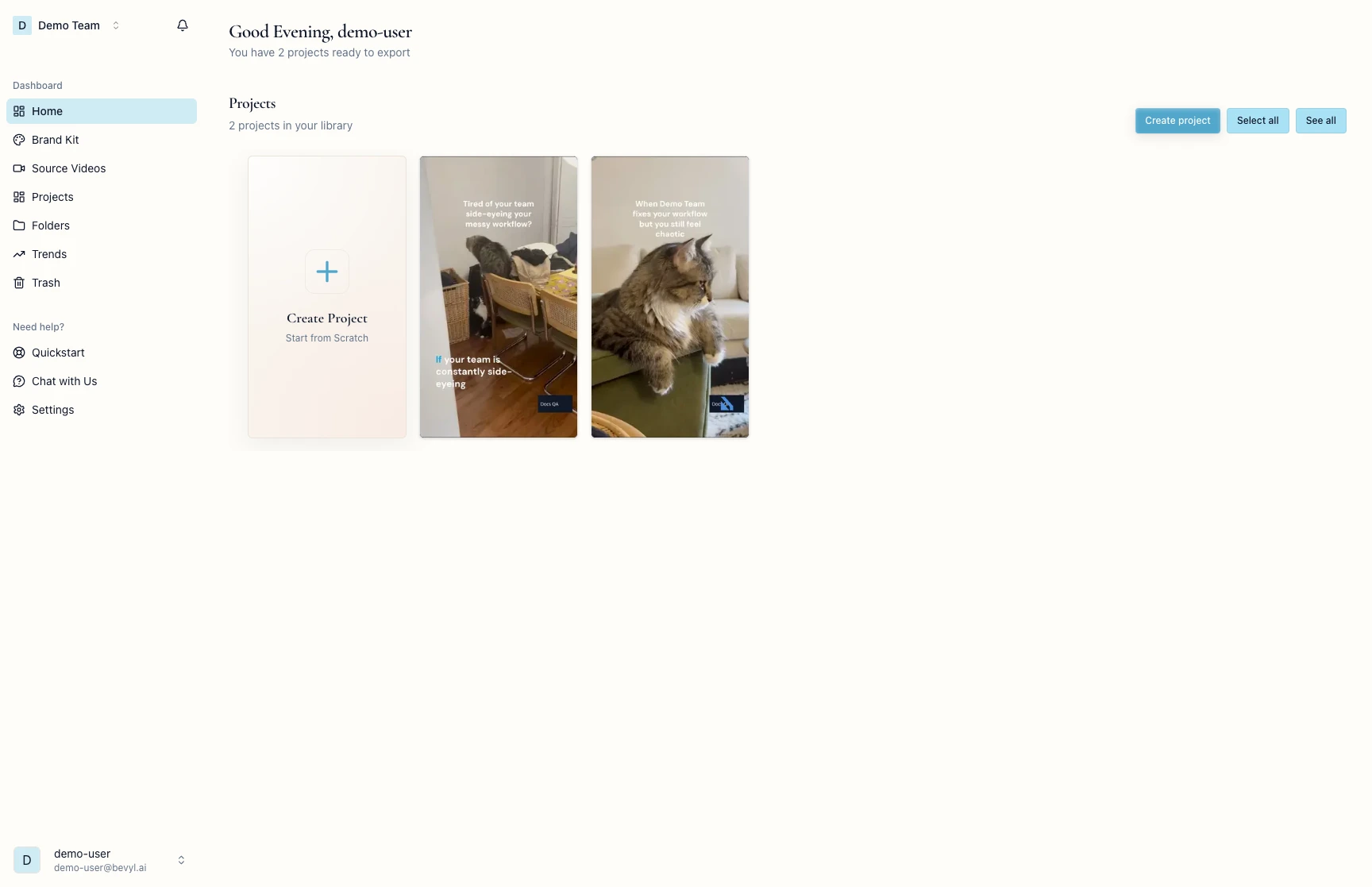
2. Open the editor
Click the project card. The editor opens — preview in the center, panel rail on the left.
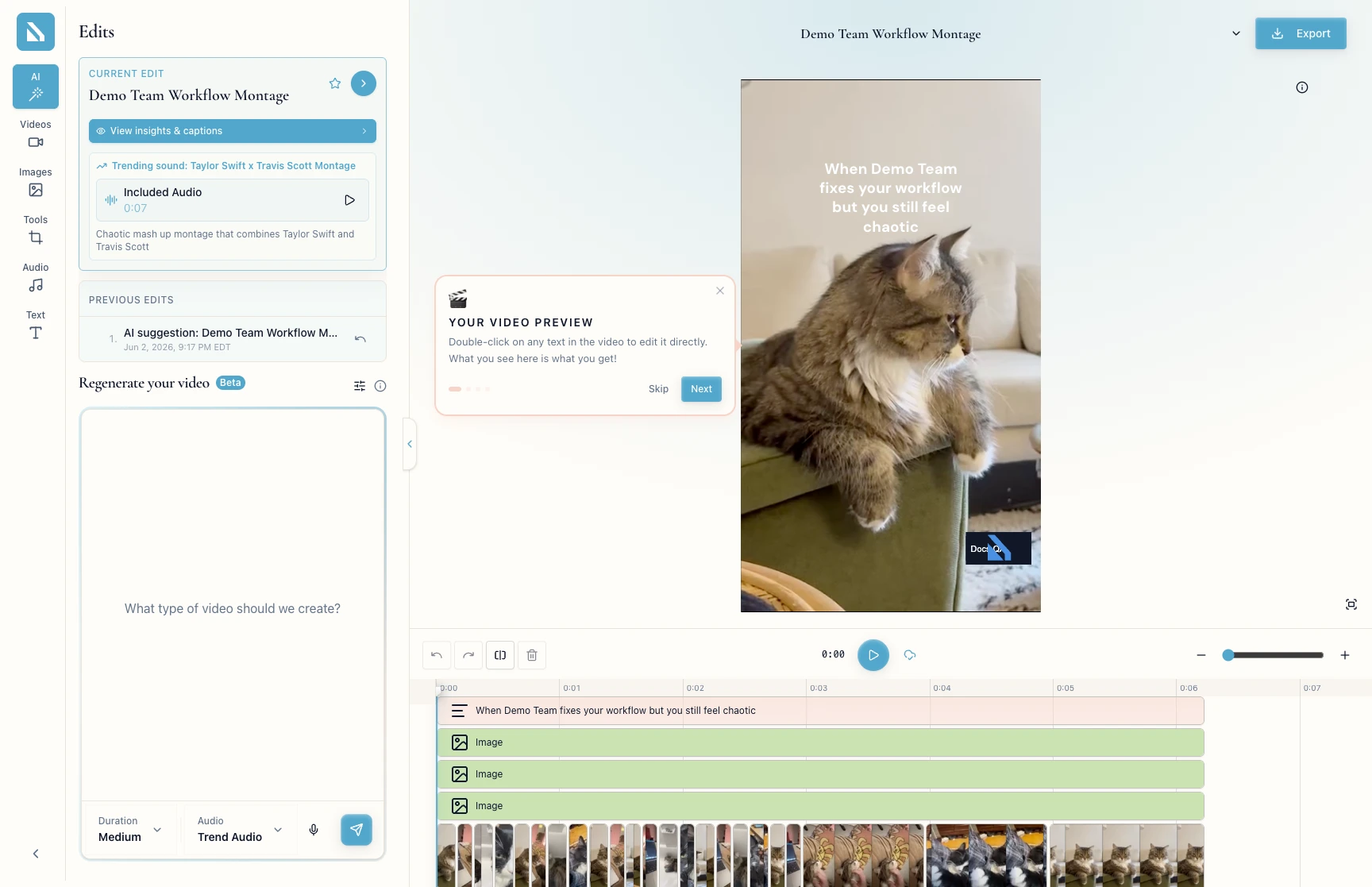
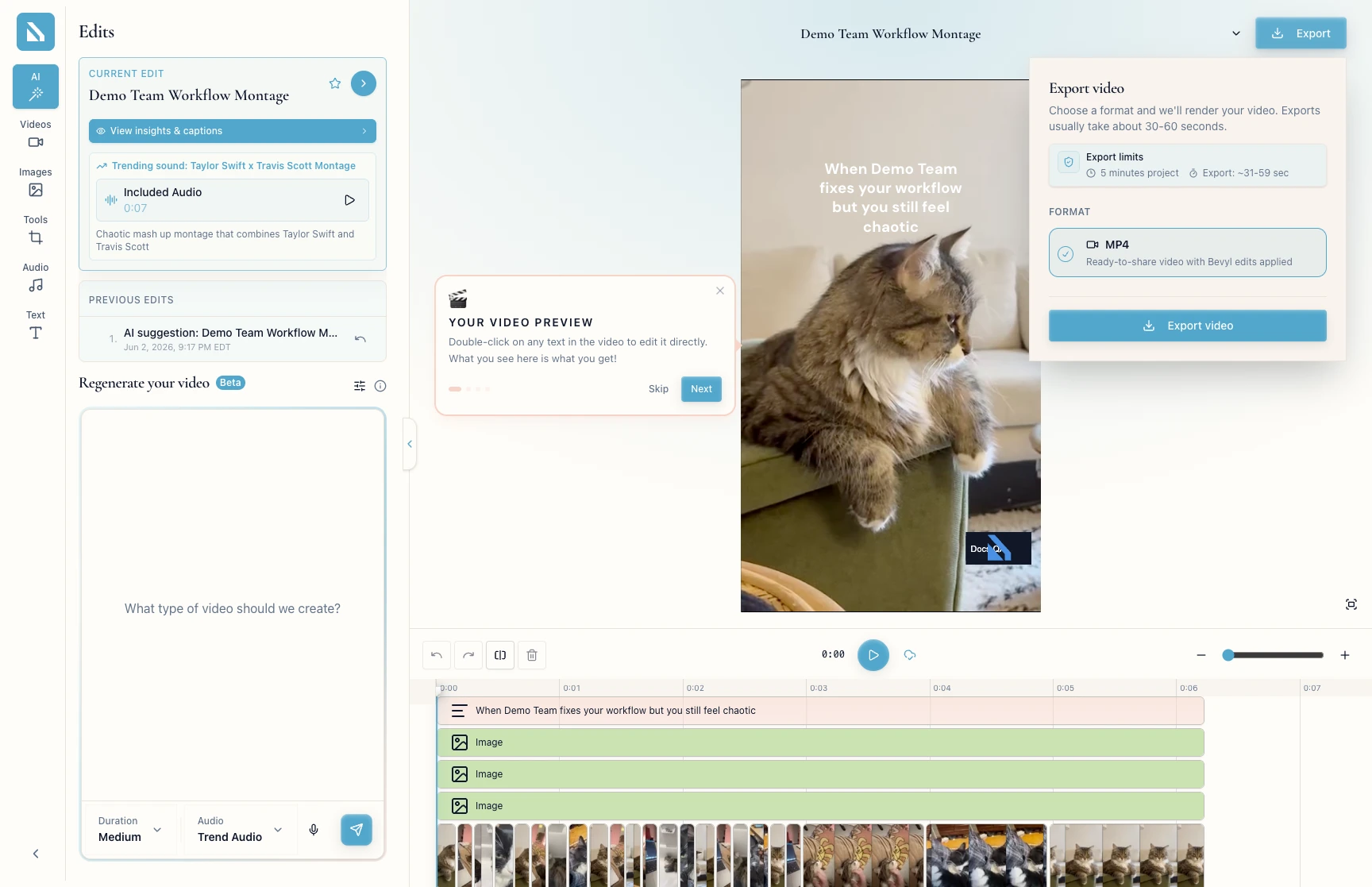
3. Open the Export video panel
Click Export, top right. The Export video panel slides in.
Keep MP4 (the default) and click Export video.
4. Wait for the notification
Bevyl queues the render. The panel says exports usually take about 30-60 seconds; large or busy renders can take longer. Either way, Bevyl emails you when the video is ready, so you can close the tab.
5. Download the file
Follow the download link in the email, or return to Home, where the finished card offers a download.
If something blocks you
- The
Export video panel does not open: refresh the editor and click Export again. - No email after 30 minutes: check spam, then check the card on
Home — the render may have finished without the email reaching you. - No email and no download on the card: contact support with the project name and the time you clicked
Export video. - The download link has expired: download from the project card on
Home instead.
Done
The rendered MP4 is on your device.
Next actions:
- Post it to the channel you exported it for.
- Return to the editor if the final render showed something worth fixing.
Related articles
