Setup
- Sign in to your Bevyl workspace.
- Open a project generated with audio — voiceover or trend audio.
- Every editor project has an
Audio panel in the left sidebar. - Required files or assets: none; optionally, a music or sound-effect file to upload.
Step by step
1. Open your project in the editor
Open your project from the home page or project list. If a result screen appears, click Take me to my video.
2. Open the Audio panel
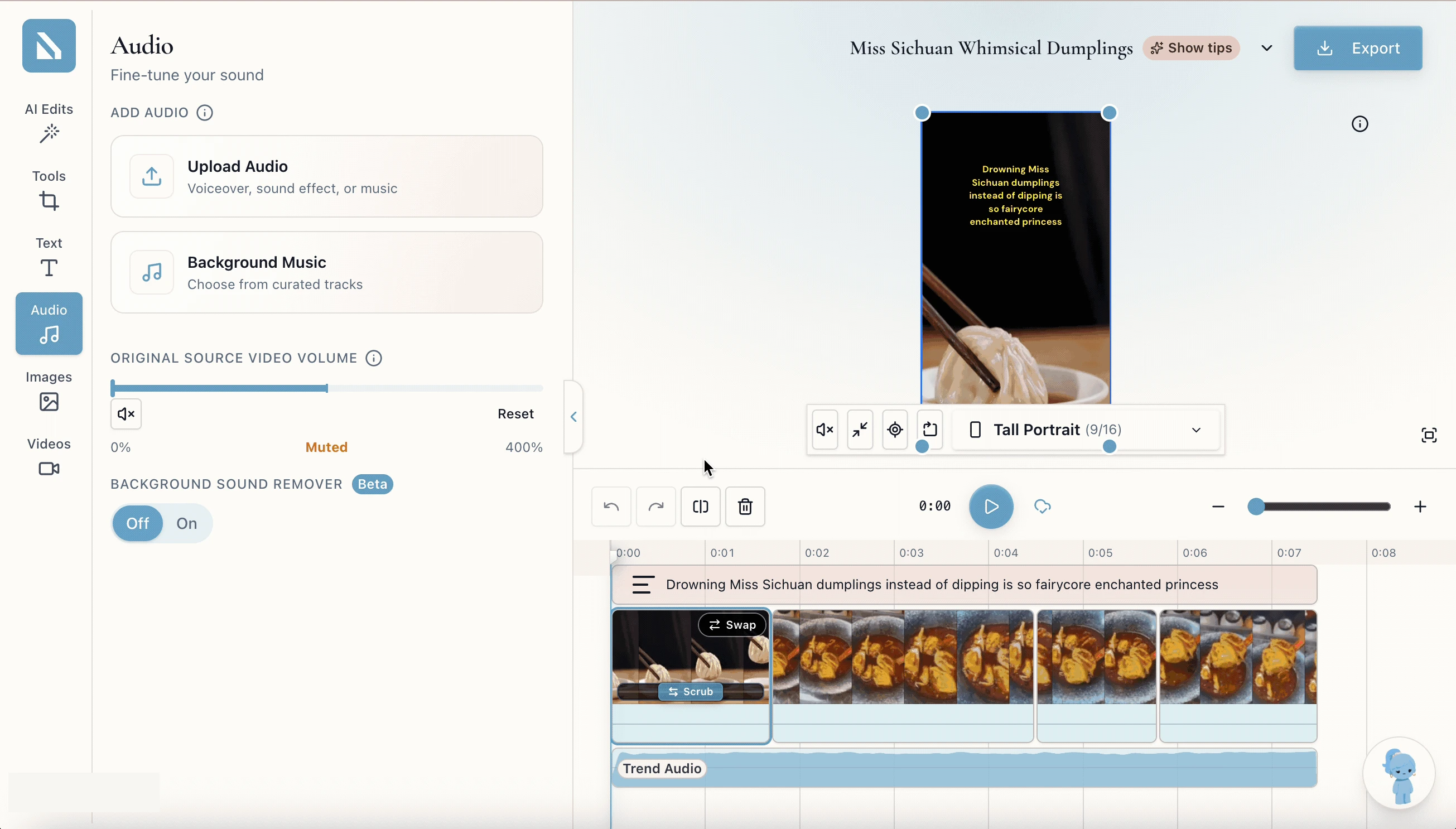
Click Audio in the left sidebar. The panel opens under the heading Audio — Fine-tune your sound.
The panel holds:
ADD AUDIO: an Upload Audio button for a voiceover, sound effect, or music file, and a Background Music button for curated tracks.ORIGINAL SOURCE VIDEO VOLUME: a 0% to 400% slider with Reset, controlling the sound your source footage recorded. It reads Muted while that sound is off.BACKGROUND SOUND REMOVER (Beta): an Off/On toggle for background-noise removal on the source audio.
3. Adjust the volume
Drag ORIGINAL SOURCE VIDEO VOLUME left for quieter, right for louder, or use the mute button beside it to silence the source footage entirely — useful when a trending sound or voiceover should lead. Reset restores the default.
4. Add or replace audio (optional)
Click Upload Audio under ADD AUDIO. The Add Audio Clip dialog opens: click Choose File, pick an audio file (MP3, WAV, M4A, or AAC), and click Add audio clip. It lands as its own track in the timeline.
Or click Background Music to choose from curated tracks instead of uploading your own.
5. Preview and export

Play the timeline from the top. The voice should ride clearly above any background track.
When the mix is right, click Export in the top-right corner.
If something blocks you
- The
Audio panel shows no volume slider: the project has no audio track — regenerate the video, or add one with Upload Audio. - The export ignores your volume change: audio applies at render time; let the export finish.
- The source footage's own sound competes with your track: lower
ORIGINAL SOURCE VIDEO VOLUME, or mute it with the button beside the slider. - Background noise leaks through: switch
BACKGROUND SOUND REMOVER to On.
Done
The mix is set, and the exported video plays with the balance you chose.
Next actions:
Related articles
