Setup
- Open a generated project in the Bevyl editor. The project must have at least two clips in the timeline.
- Required files or assets: none — reordering works with the clips already in your project.
- Use a desktop browser; this workflow is not available on mobile.
Step by step
1. Open your project in the editor
Open your project. If a results page appears after generation, click Take me to my video.
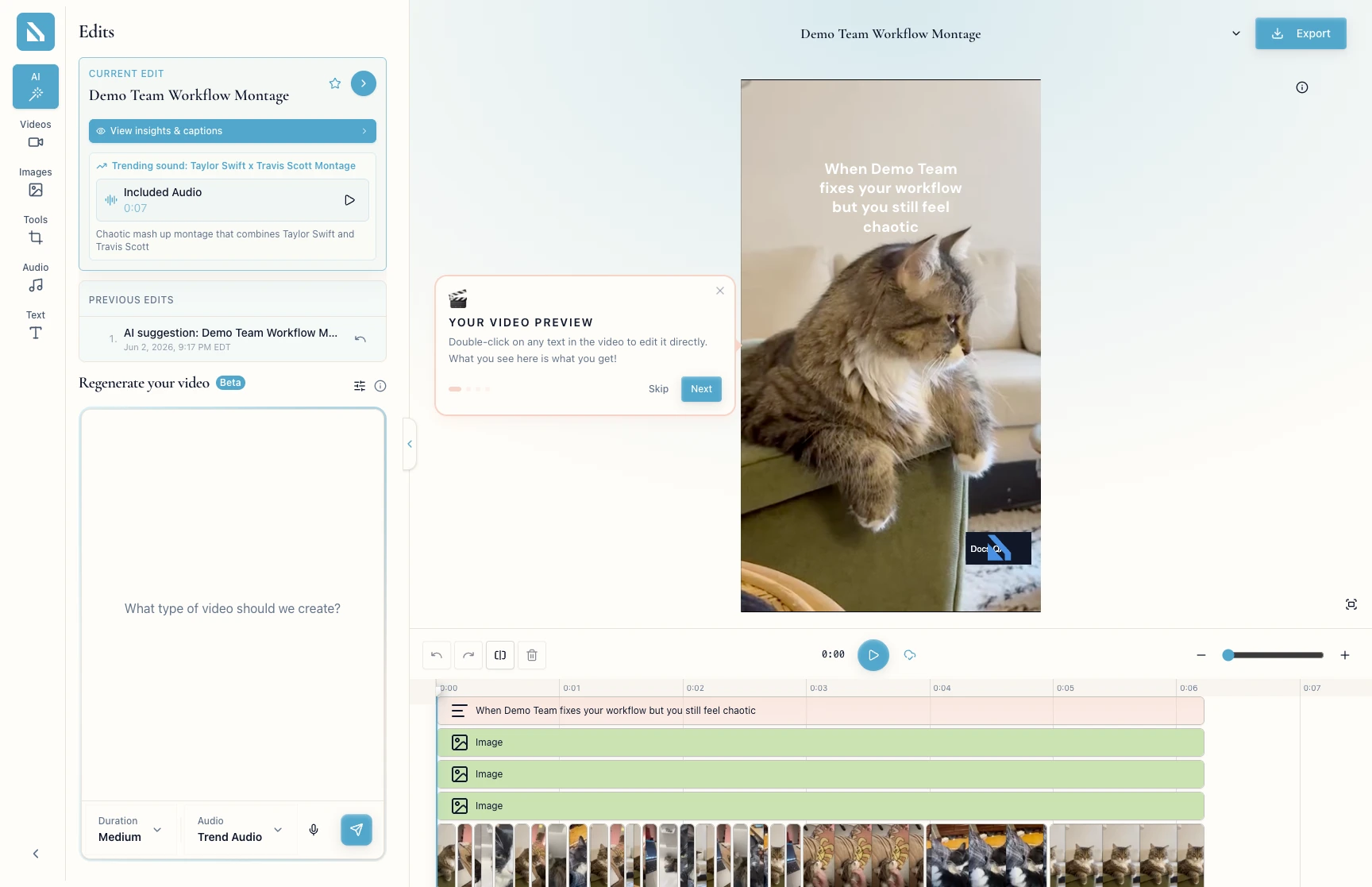
The timeline loads at the bottom of the screen, each clip a thumbnail block on the ruler.
2. Review clip order and pacing
Click along the timestamp ruler to preview each clip in turn. Watch for:
- A weak opening — your strongest clip belongs first.
- Dead air in the middle — clips that stall the momentum.
- An abrupt ending — a cut before the message lands.
3. Drag a clip to a new position
Click and hold a clip, drag it left or right, and release. The other clips close the gap.
Repeat until the order serves the story.
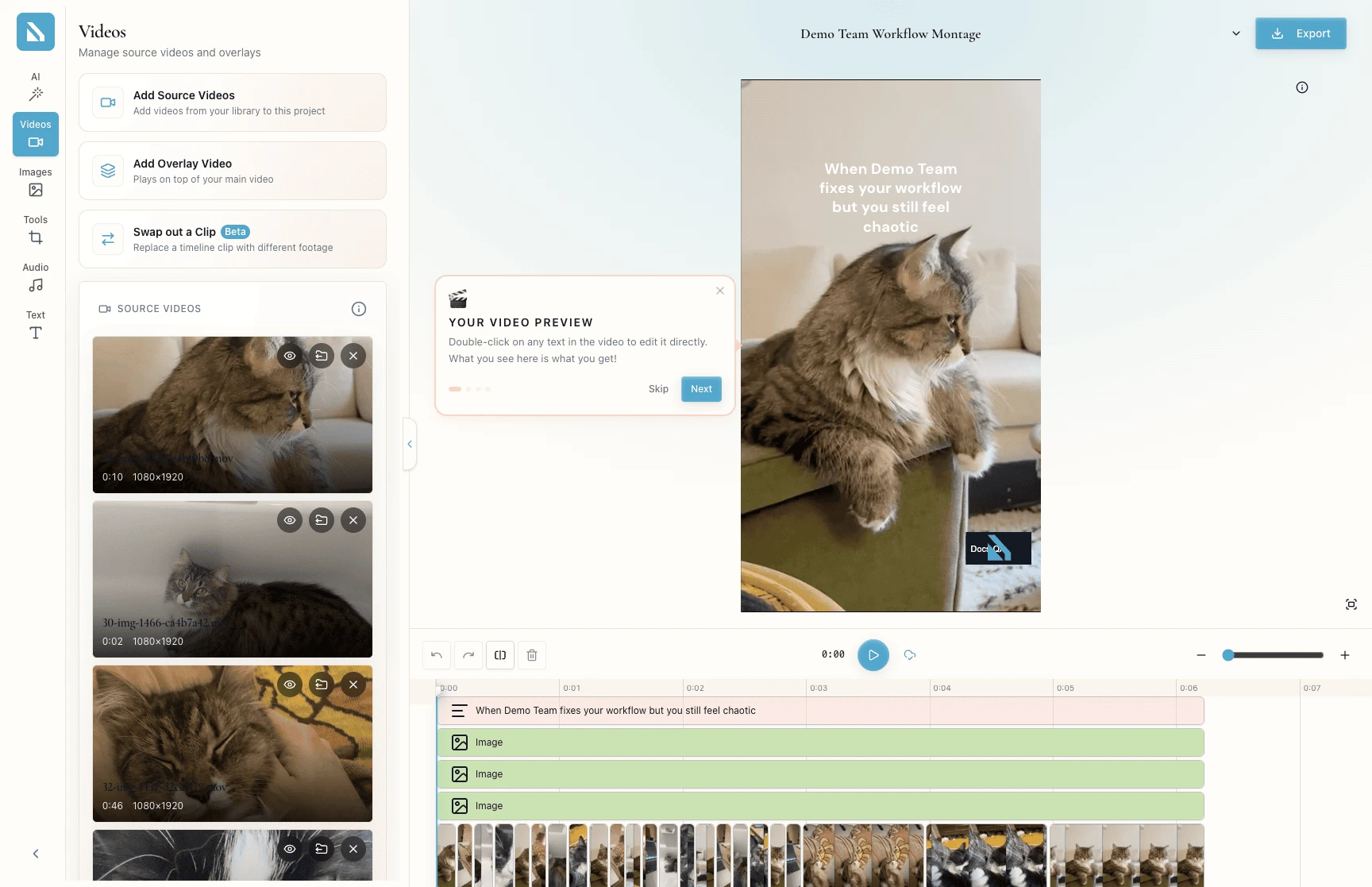
Not sure where a clip came from? Open the Videos panel in the left sidebar; SOURCE VIDEOS lists every upload with duration and resolution.
To swap in different footage entirely, use Swap out a Clip (Beta) in the same panel — see Replace weak clips fast.
5. Preview the result
Play the edit from the top. Captions and audio stay locked to the timeline, so you see and hear the full cut in context.
6. Review version history if needed
Open the Edits panel. CURRENT EDIT is the live version; PREVIOUS EDITS lists earlier versions by date. If the reorder made things worse, switch back.
If something blocks you
- A clip will not move: the timeline is still loading — wait for every thumbnail to render.
- Clips look identical: the
Videos panel shows each clip's source filename and duration. - You want to delete a clip: the timeline has no standalone delete — swap the clip for better footage with
Swap out a Clip (Beta), or regenerate the video.
Done
The clips run in the order that serves your hook and story, and the preview plays cleanly start to finish.
Next actions:
- Replace weak clips that reordering could not save.
- Click
Export when the pacing satisfies you.
Related articles
