Setup
- Open the project in the Bevyl editor, with at least one source video in its
Source Videos list. - Watch the timeline preview and pick the clip to replace.
- Required files or assets: none — the replacement comes from footage already in the project.
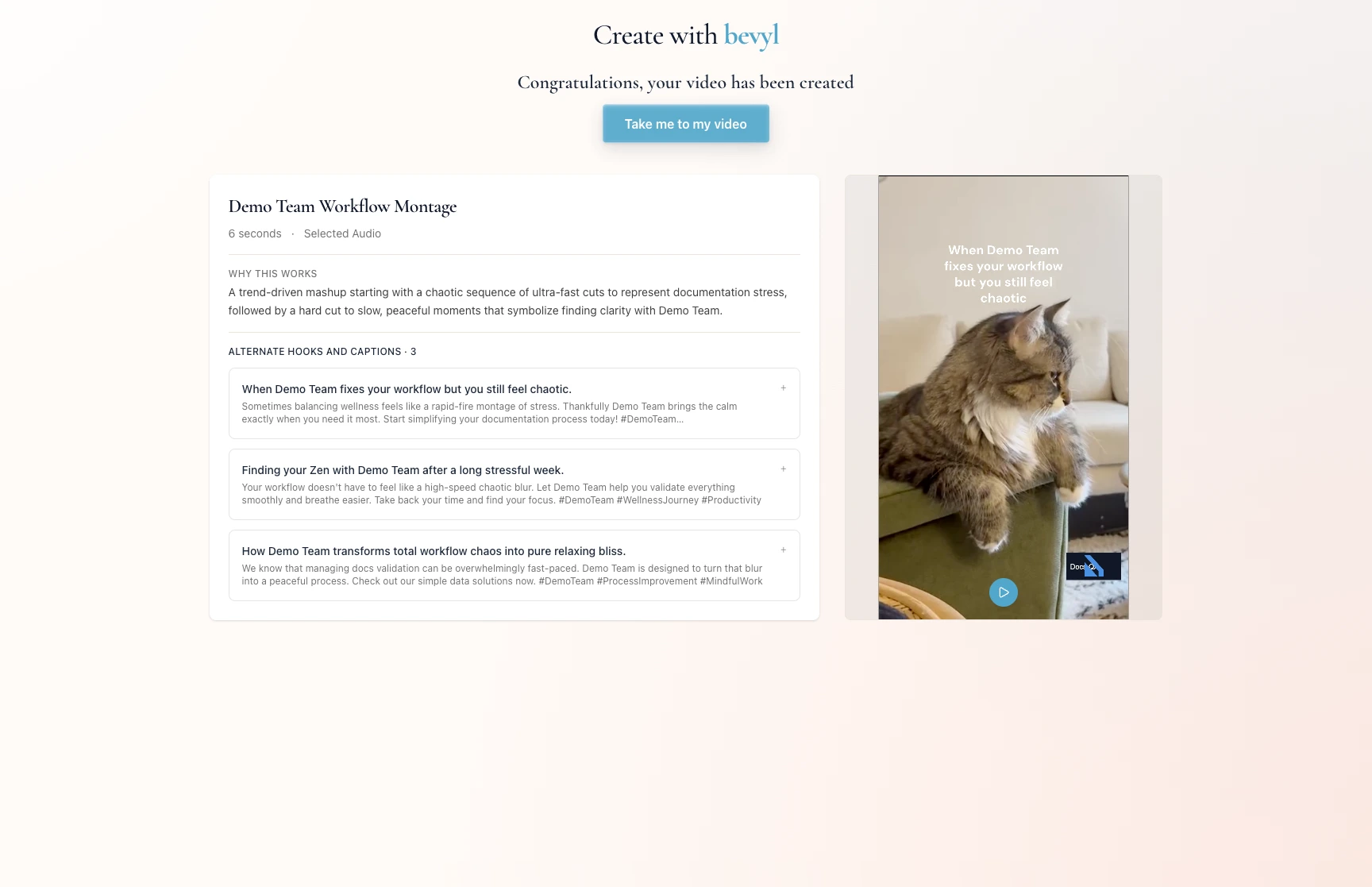
Step by step
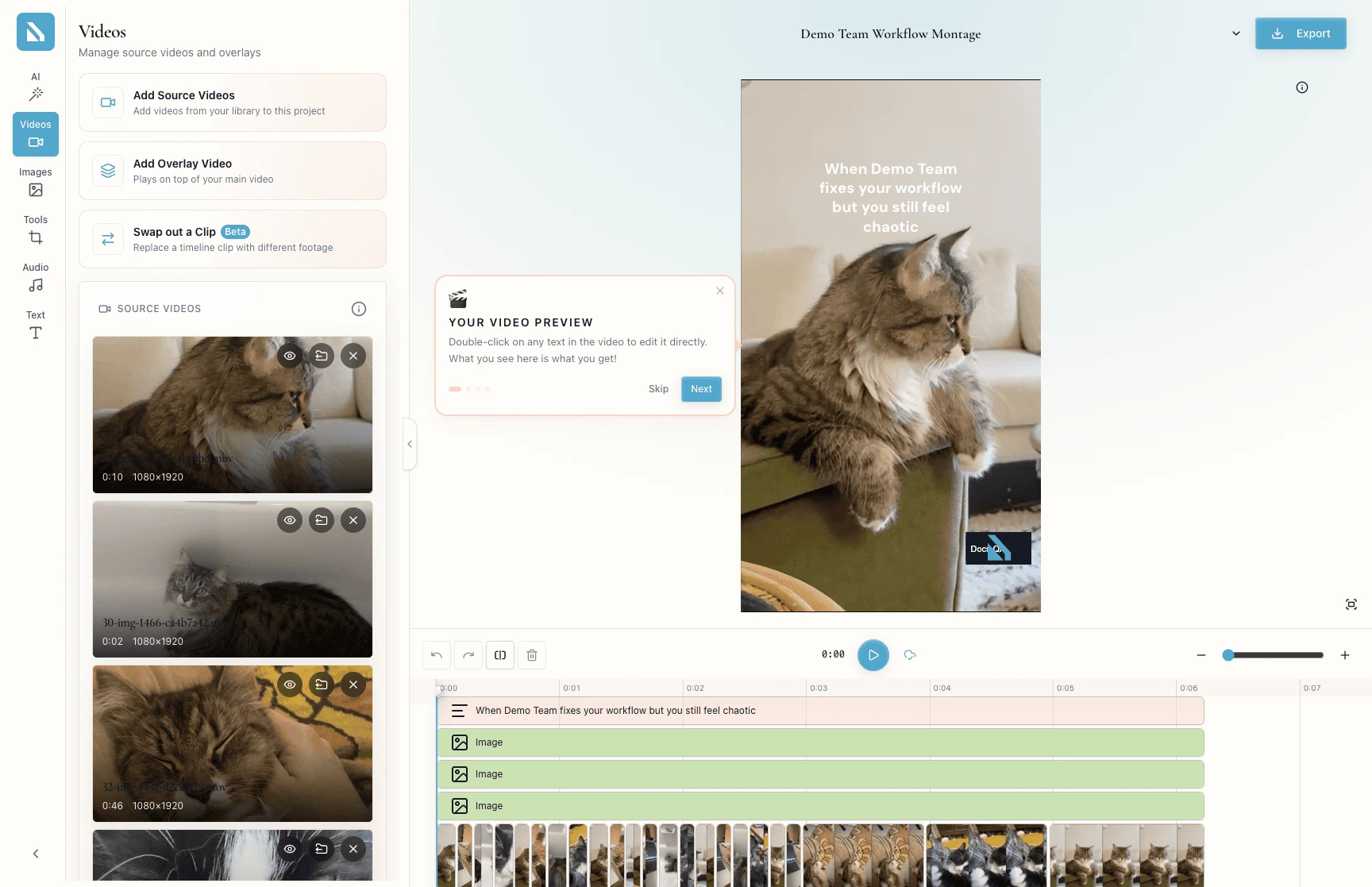
1. Open the Videos panel
Click Videos in the left panel tabs. The panel shows three actions at the top — Add Source Videos, Add Overlay Video, and Swap out a Clip (Beta) — followed by the Source Videos list.
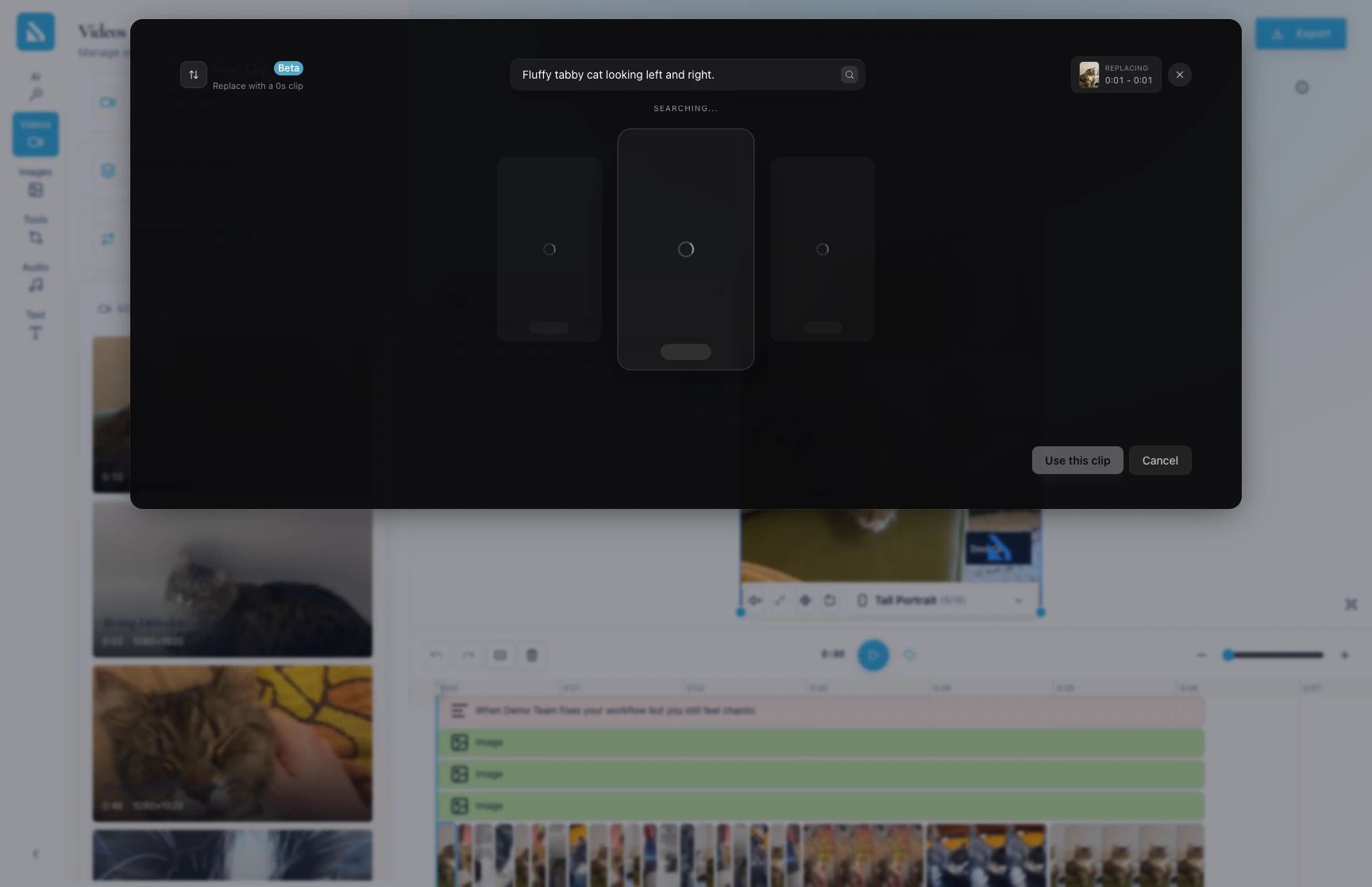
2. Start the swap
Click Swap out a Clip. The panel becomes a clip picker: choose the timeline clip to replace, then the footage to replace it with.
3. Select the clip to replace
Click the timeline clip you want out. It highlights to confirm the selection.
Pick the source video to swap in. Bevyl replaces the clip in place and updates the preview.
5. Preview the result
Play the timeline. The replacement should match the pacing and length of the cut.
If something blocks you
Swap out a Clip is missing: open the Videos tab — the button sits above the Source Videos list.- No source videos are listed: click
Add Source Videos first, then return to Swap out a Clip. - The swap stalls: the feature is Beta — refresh the editor and retry.
Done
The clip is replaced, the preview shows the new footage, and every other clip and caption is untouched.
Next actions:
- Play the full timeline once more to check the pacing.
- Click
Export when the edit is ready to share.
Related articles
