Setup
- Sign in to the workspace where you want the draft.
- Have footage in
Source Videos, or files ready to upload. - Pick your format ahead of time — it decides whether the draft needs a voice, original audio, or a trending sound.
- Required files or assets: source video files, in the library or ready to upload.
Step by step
1. Open your projects and start a new project
Go to Projects in the sidebar and click Create project, top right.
The format screen opens.
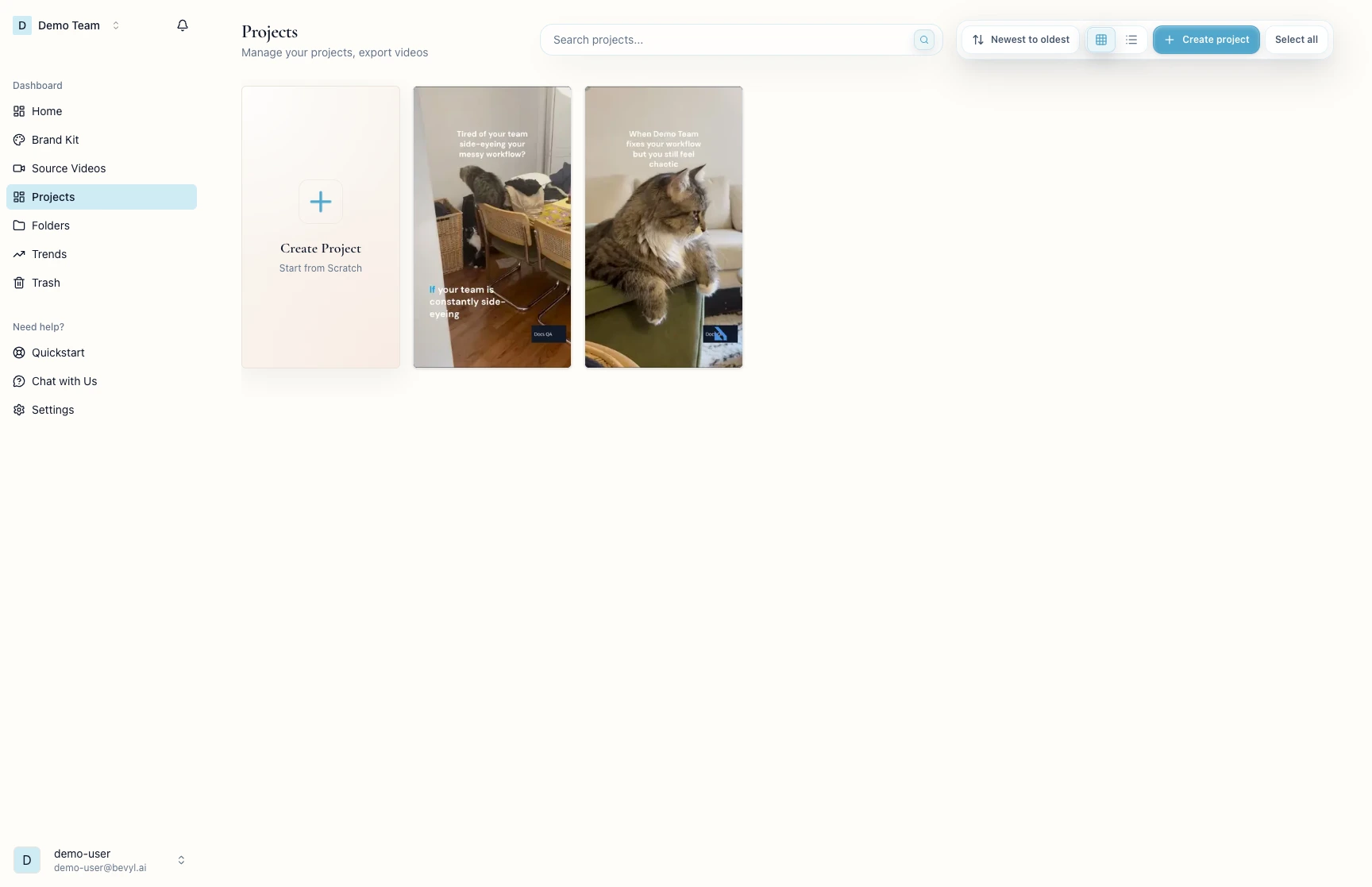
On the Create with bevyl screen, pick the format that fits your clips:
Narrated Story: b-roll, product shots, footage that needs a script.Trending Sounds: a quick montage cut to a trending audio clip.Talking Head: someone already speaking on camera.
Clicking a format card advances you to the inputs step.
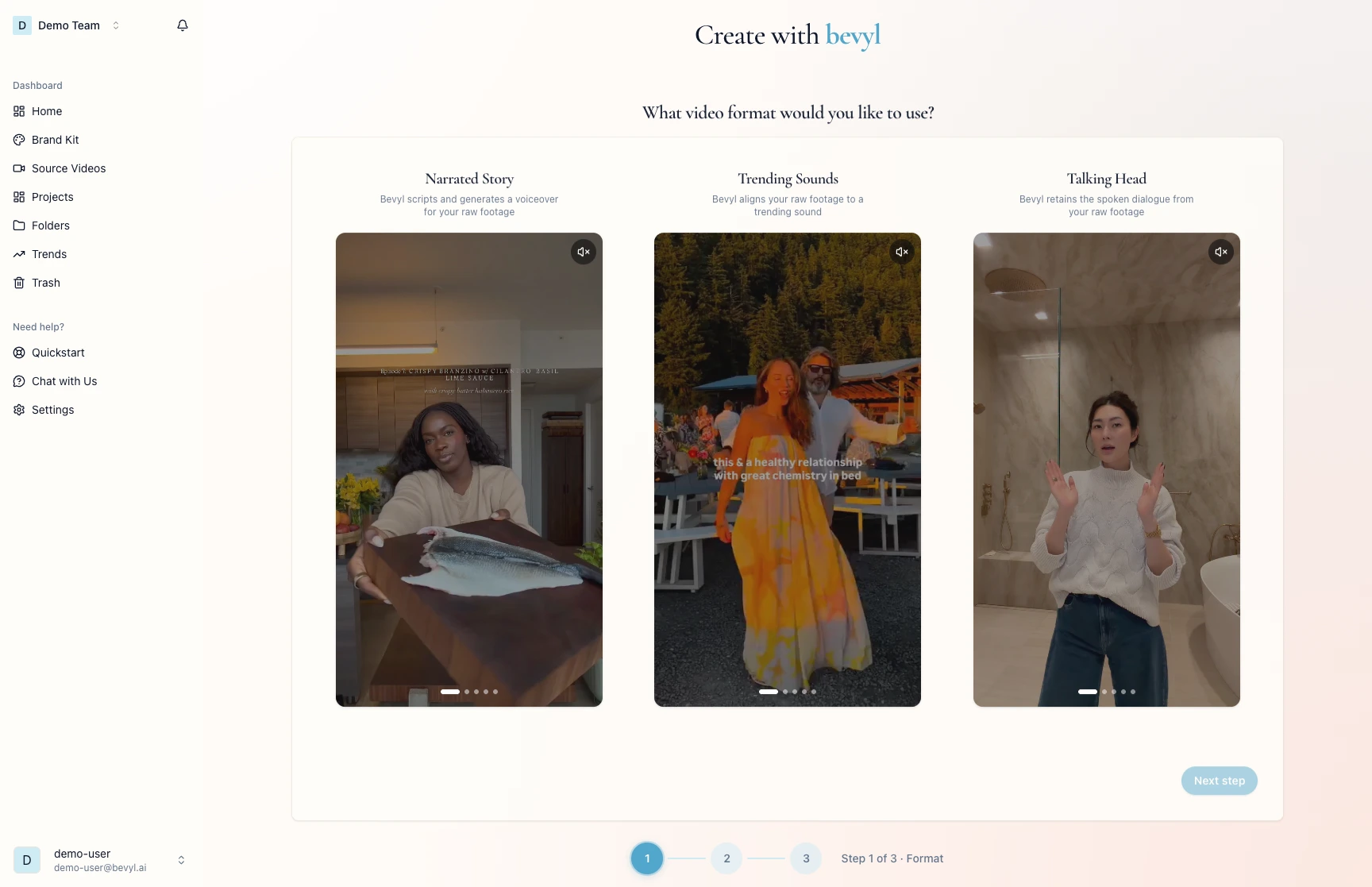
3. Add your source videos
On Which inputs do you want to use?, click Select videos.
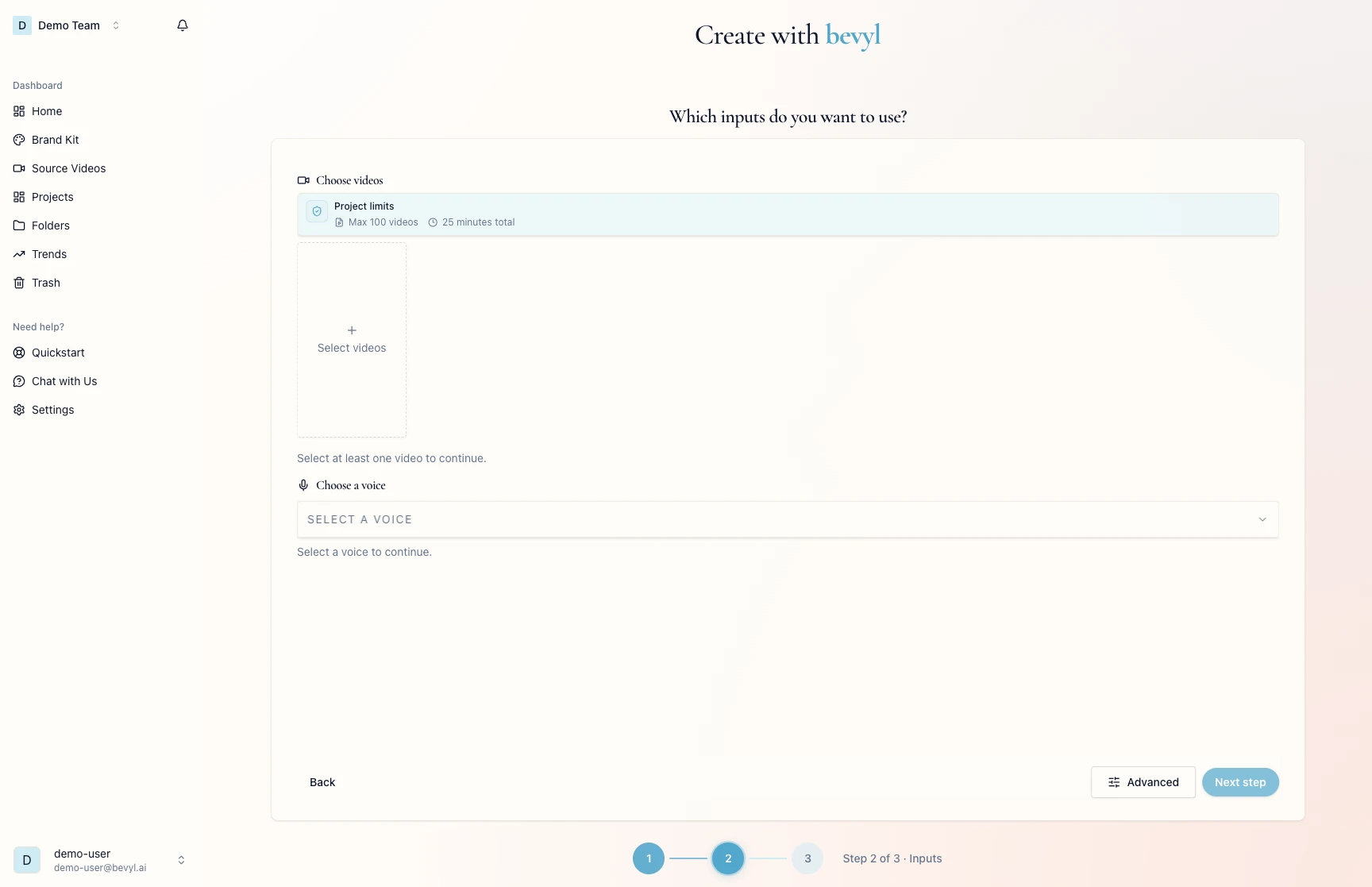
The Select Videos modal opens on your library.
Click the clips you want.
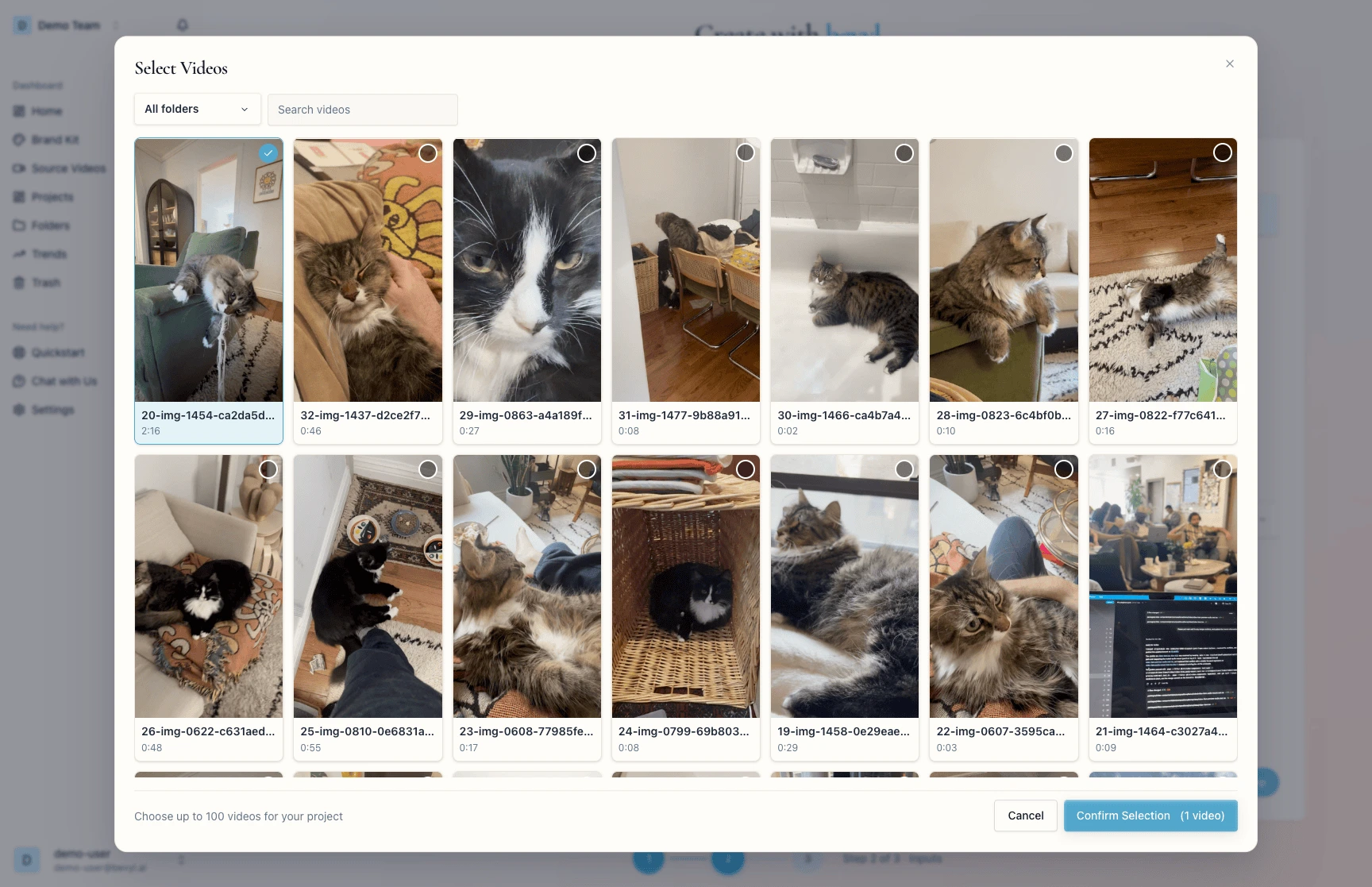
Click Confirm Selection to add the footage to your project.
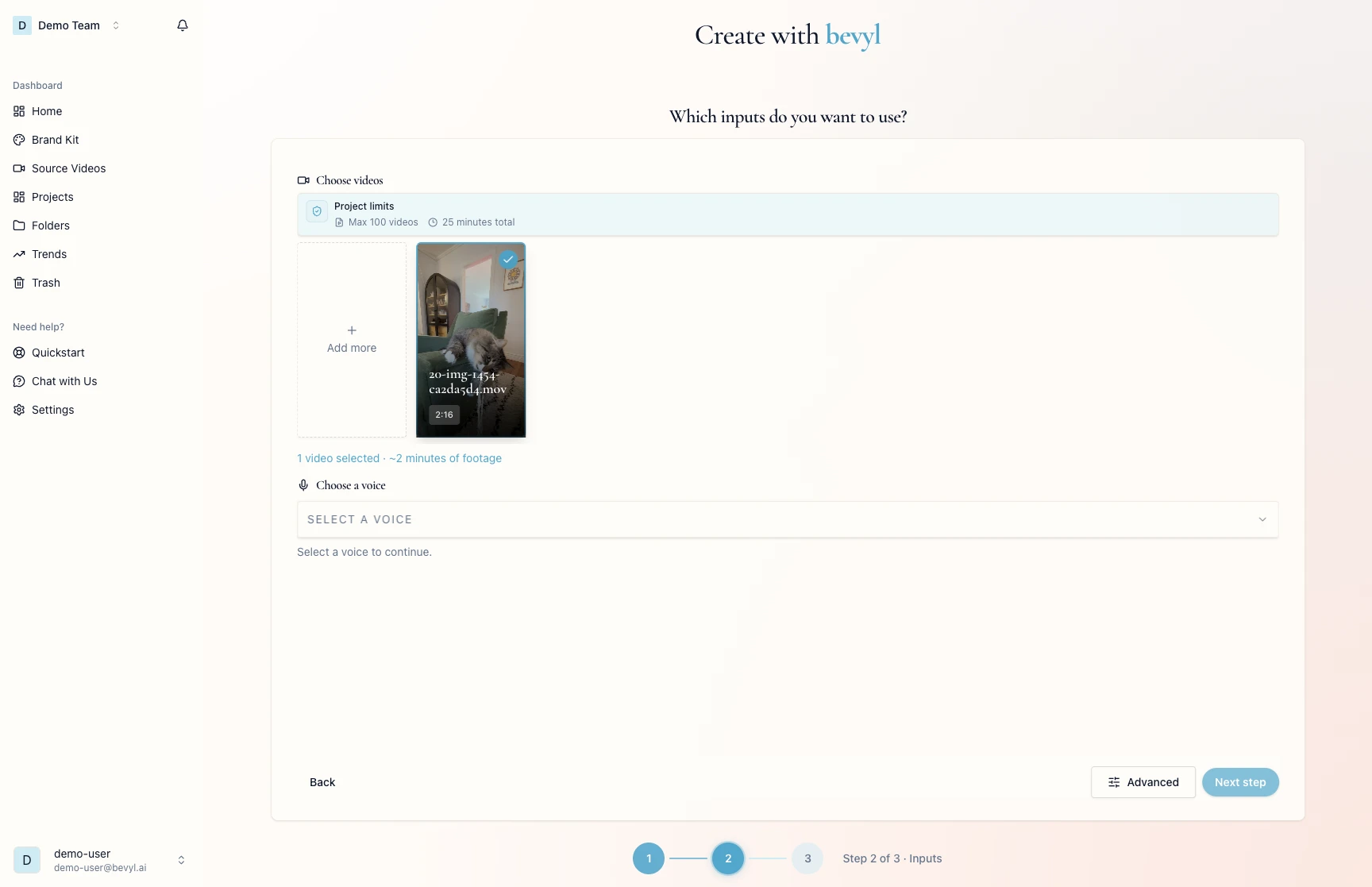
4. Choose a voice (Narrated Story only)
For Narrated Story, click Select a voice to open the voice list.
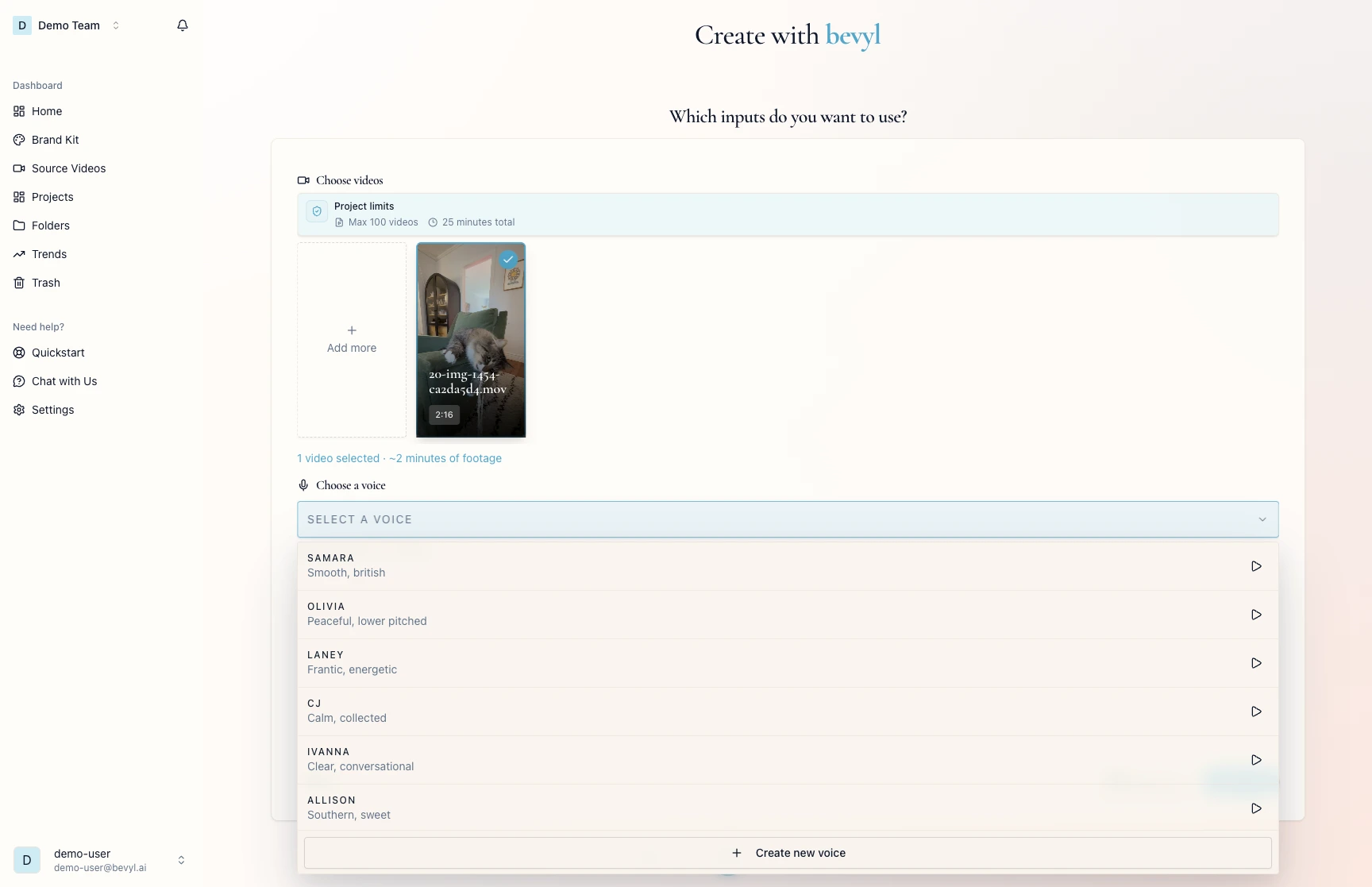
Click a voice. Voice selected. appears below the dropdown.
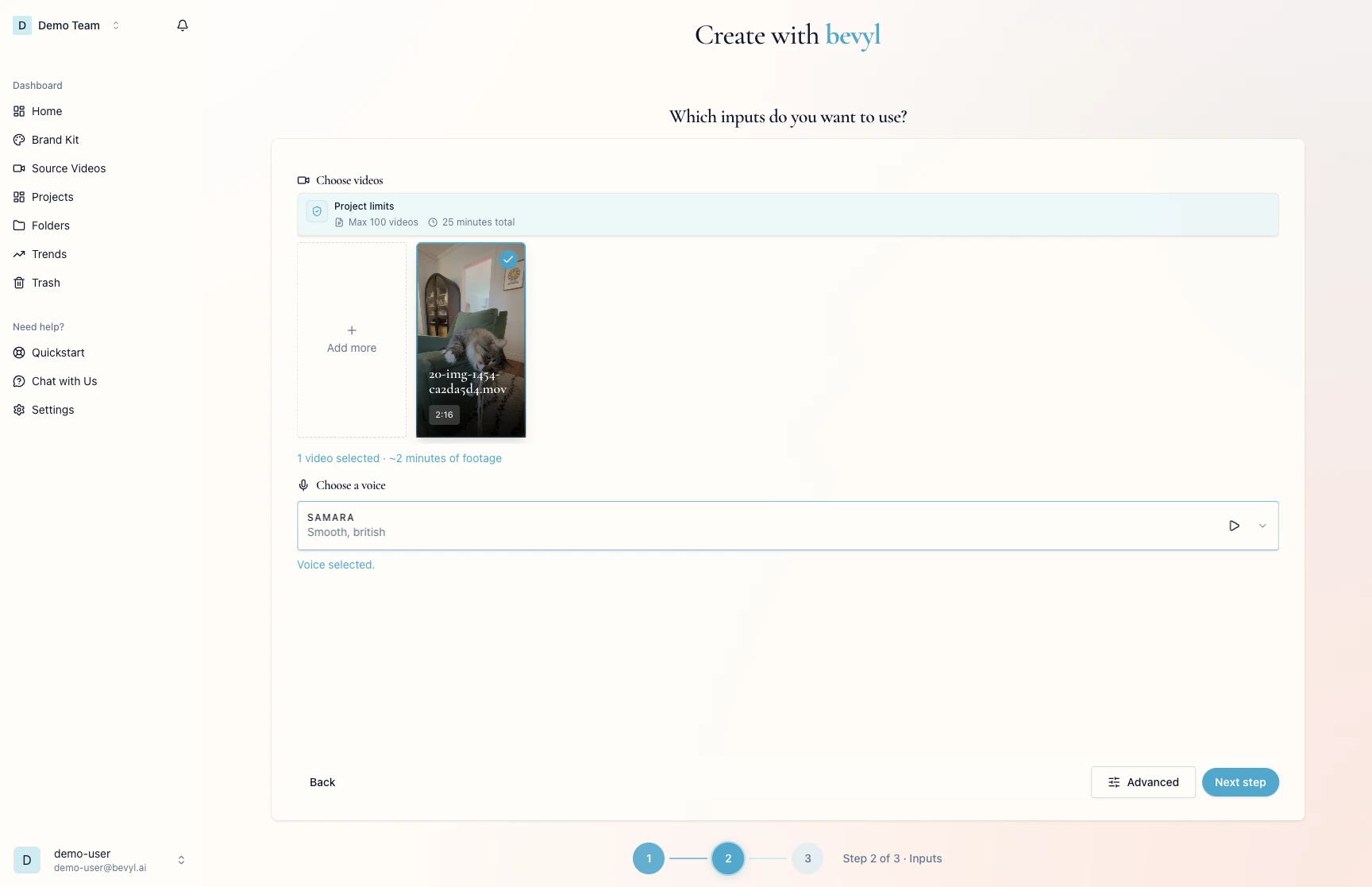
Next step activates once a video and a voice are both selected.
5. Describe what Bevyl should make
Click Next step to reach the Let's shape the edit together prompt step. In What is your video topic?, describe the draft you want.
One clear sentence with the goal, tone, and audience is enough — for example: "Create a polished product teaser for new customers with a confident, premium tone."
Click Skip to generation.
6. Wait for Bevyl to process the project
Keep the tab open while Bevyl generates the draft — usually 5–10 minutes.
The page shows the processing state. Click Email me when it's done if you would rather be notified.
7. Open the finished draft
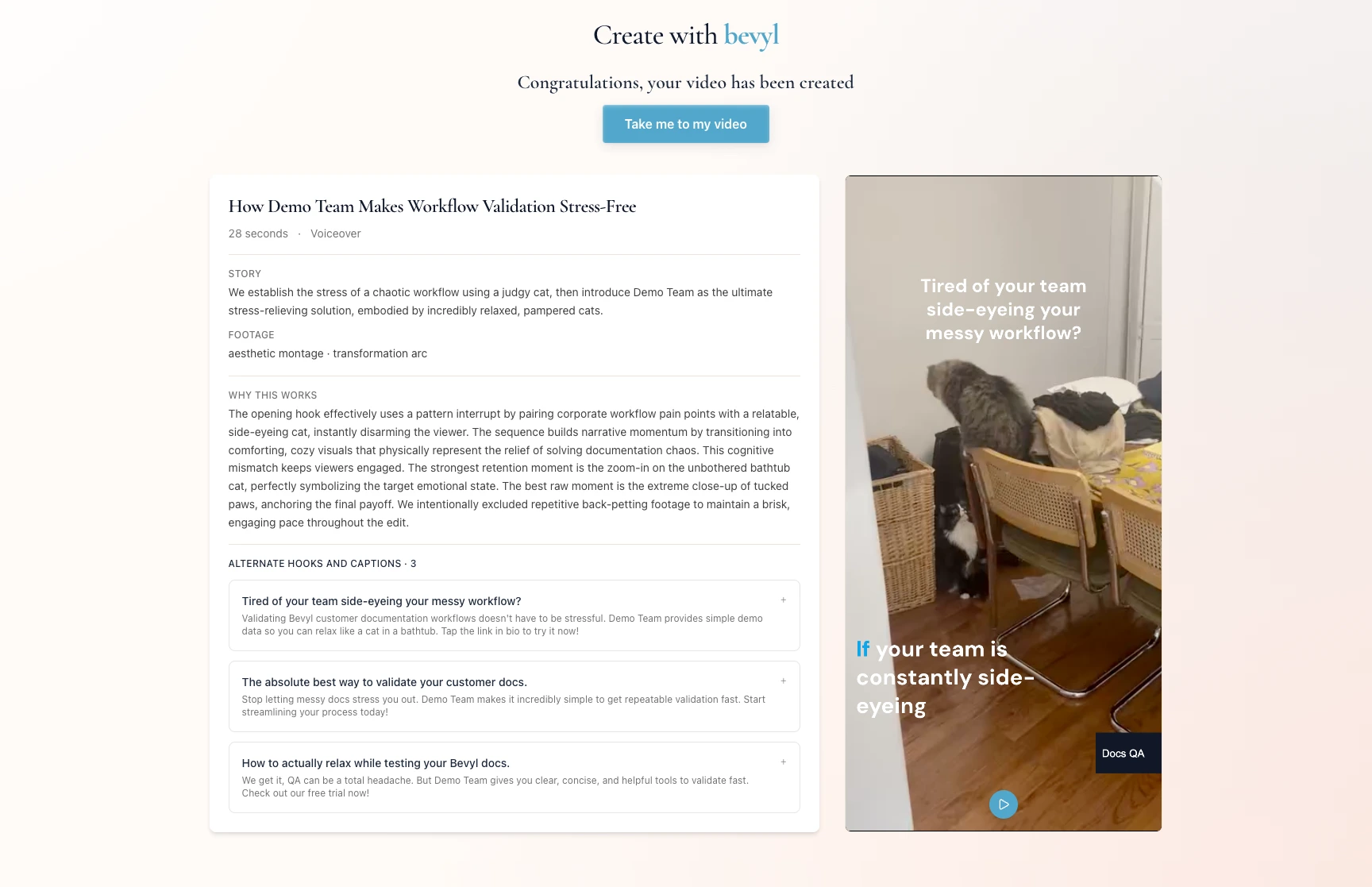
When Congratulations, your video has been created appears, click Take me to my video.
Your first draft opens, ready to review and change.
If something blocks you
No videos available in the picker: upload clips in Source Videos, then click Select videos again.Next step is disabled: select at least one video — and for Narrated Story, a voice.Skip to generation does not appear: reach step 3 of 3 and enter a prompt in What is your video topic?.- Generation seems slow: keep the tab open; 5–10 minutes is typical.
- The finished video never appears: contact support with the project name and the time you started generation.
Done
Your first draft is ready to review.
Next actions:
- Open the draft and adjust captions, cuts, and pacing.
- Try a different format if you want a different style.
- Create another project with a sharper prompt now that you have seen what Bevyl makes.
Related articles
