Troubleshoot Create Project Flow
Fix the common blockers that stop a new draft: missing inputs, unsupported formats, and stuck generation.
Still blocked?
Contact Bevyl support if project creation still fails after the fixes in this guide.
Fix the common blockers that stop a new draft: missing inputs, unsupported formats, and stuck generation.
Contact Bevyl support if project creation still fails after the fixes in this guide.
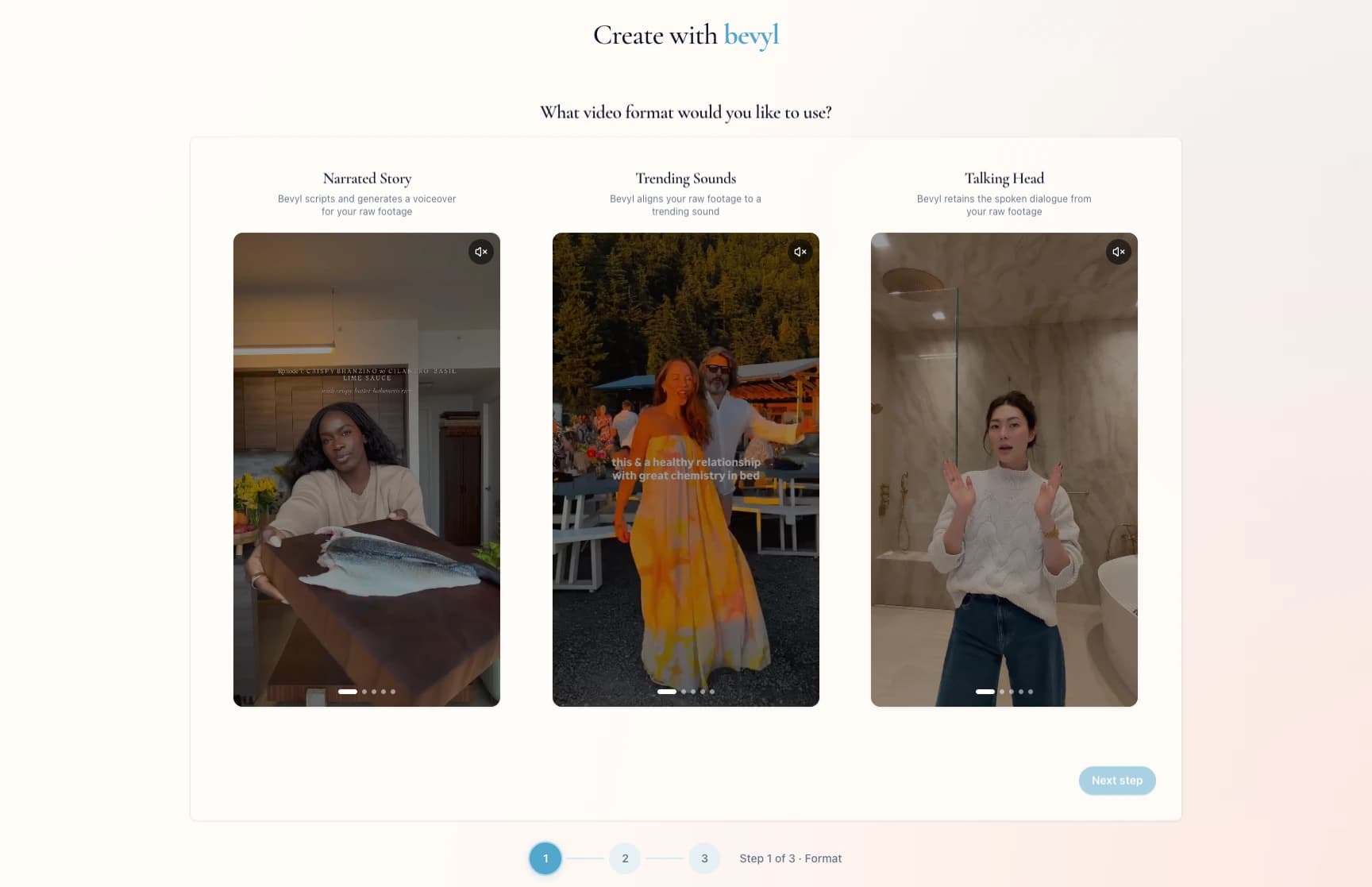
Create with bevyl where the issue appeared.Go to Create with bevyl. The first screen asks What video format would you like to use?, offering Narrated Story, Trending Sounds, and Talking Head.
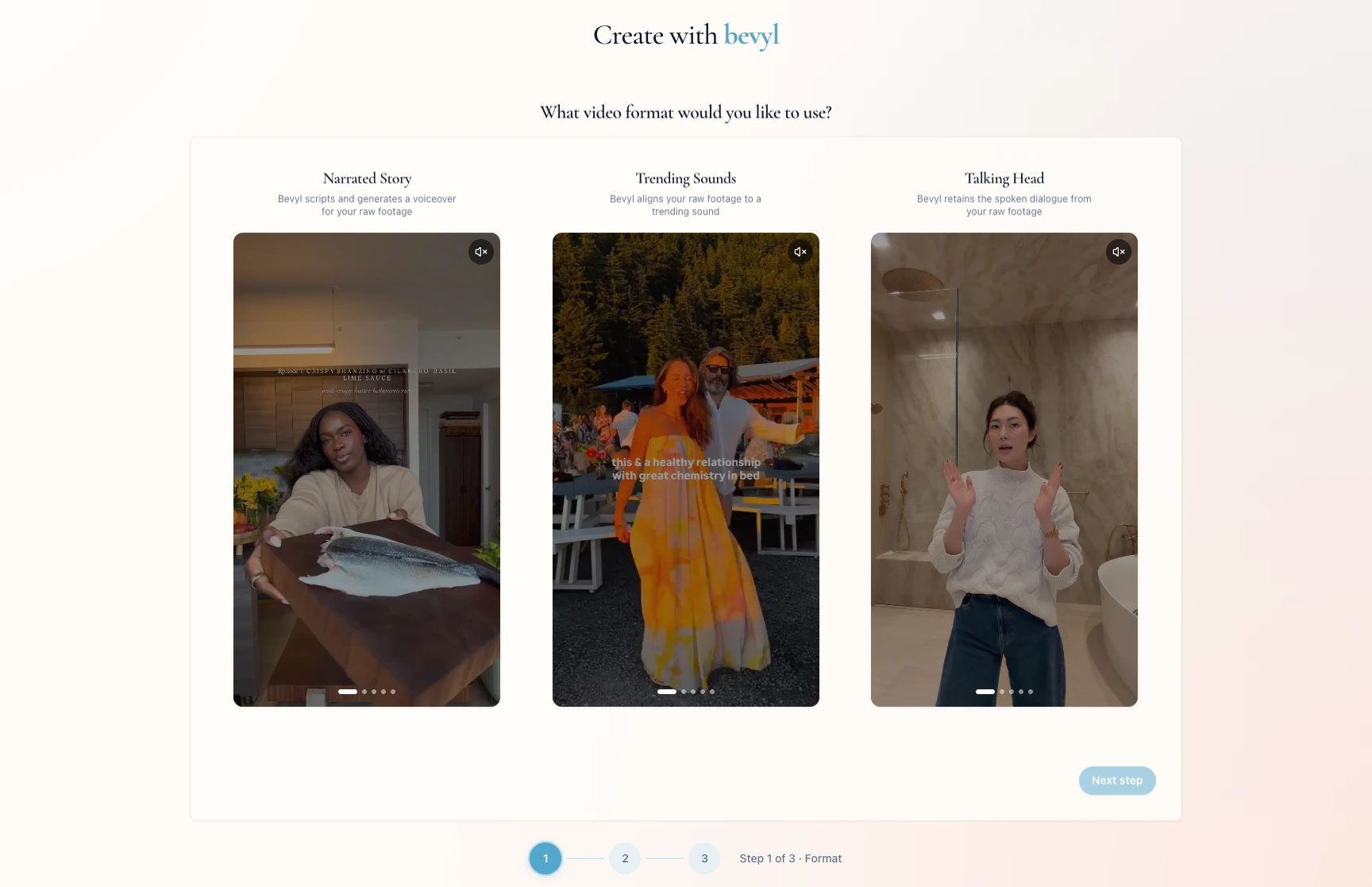
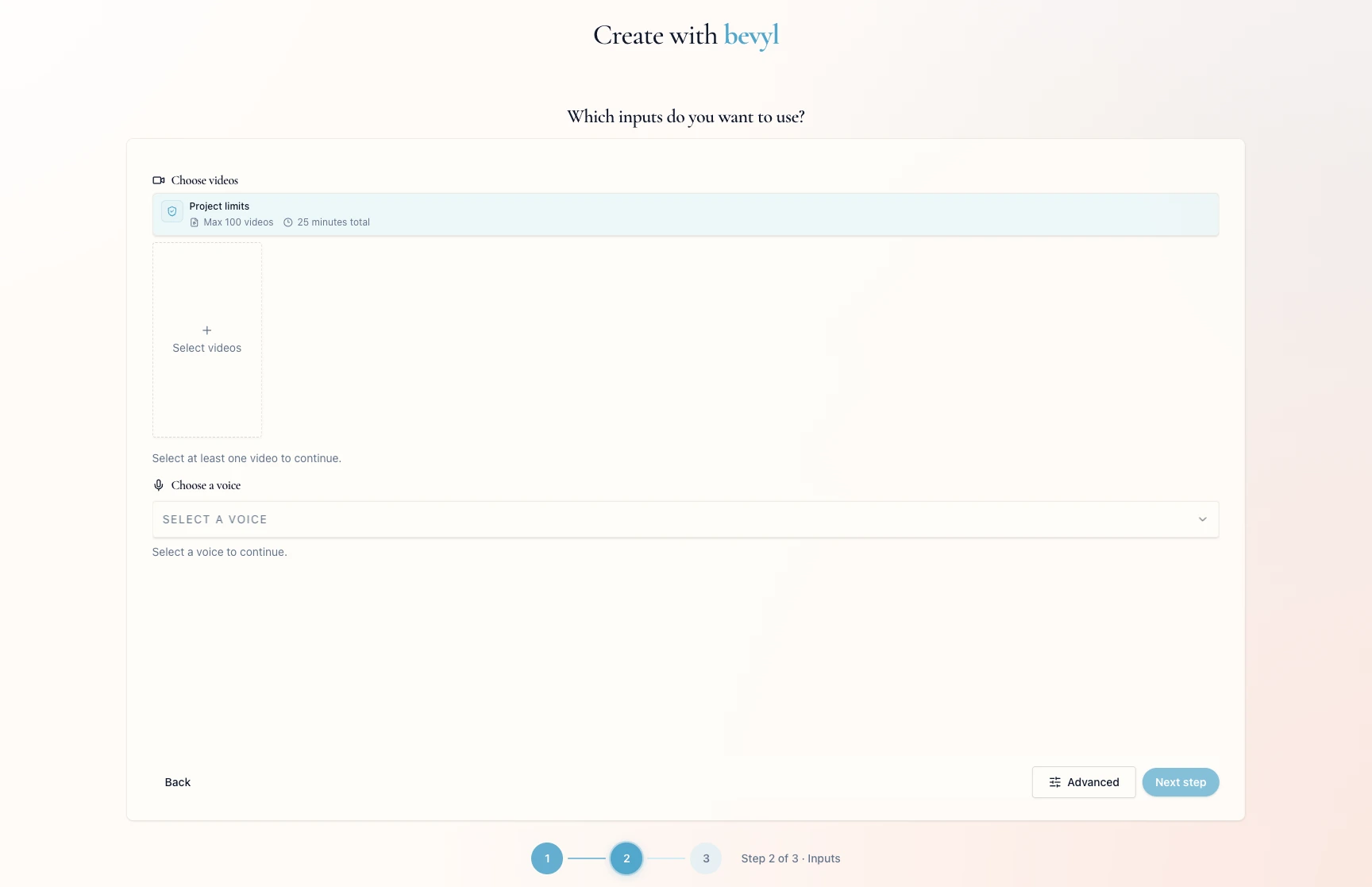
After you choose a format, the flow reaches Step 2 of 3 · Inputs. Clear each inline error:
Select at least one video to continue. — pick videos under Choose videos.Select a voice to continue. — pick a voice under Choose a voice.Select a trend to continue. — pick a trend sound under Select a trend.If Select videos offers nothing, upload footage in Source Videos first, then return.
If generation fails on the loading screen, click Try again to restart with the same inputs.
If Try again fails too, contact support with the project name and the approximate time of the failure.
Source Videos, let it finish analyzing, then return.You can pass the Inputs step, and generation starts.