Understand Upload and Analysis Statuses
Know which upload and analysis labels mean a video is still moving, ready to edit, or needs a retry.
Upload still stuck?
Contact Bevyl support if a video stays in analysis or fails after retrying.
Know which upload and analysis labels mean a video is still moving, ready to edit, or needs a retry.
Contact Bevyl support if a video stays in analysis or fails after retrying.
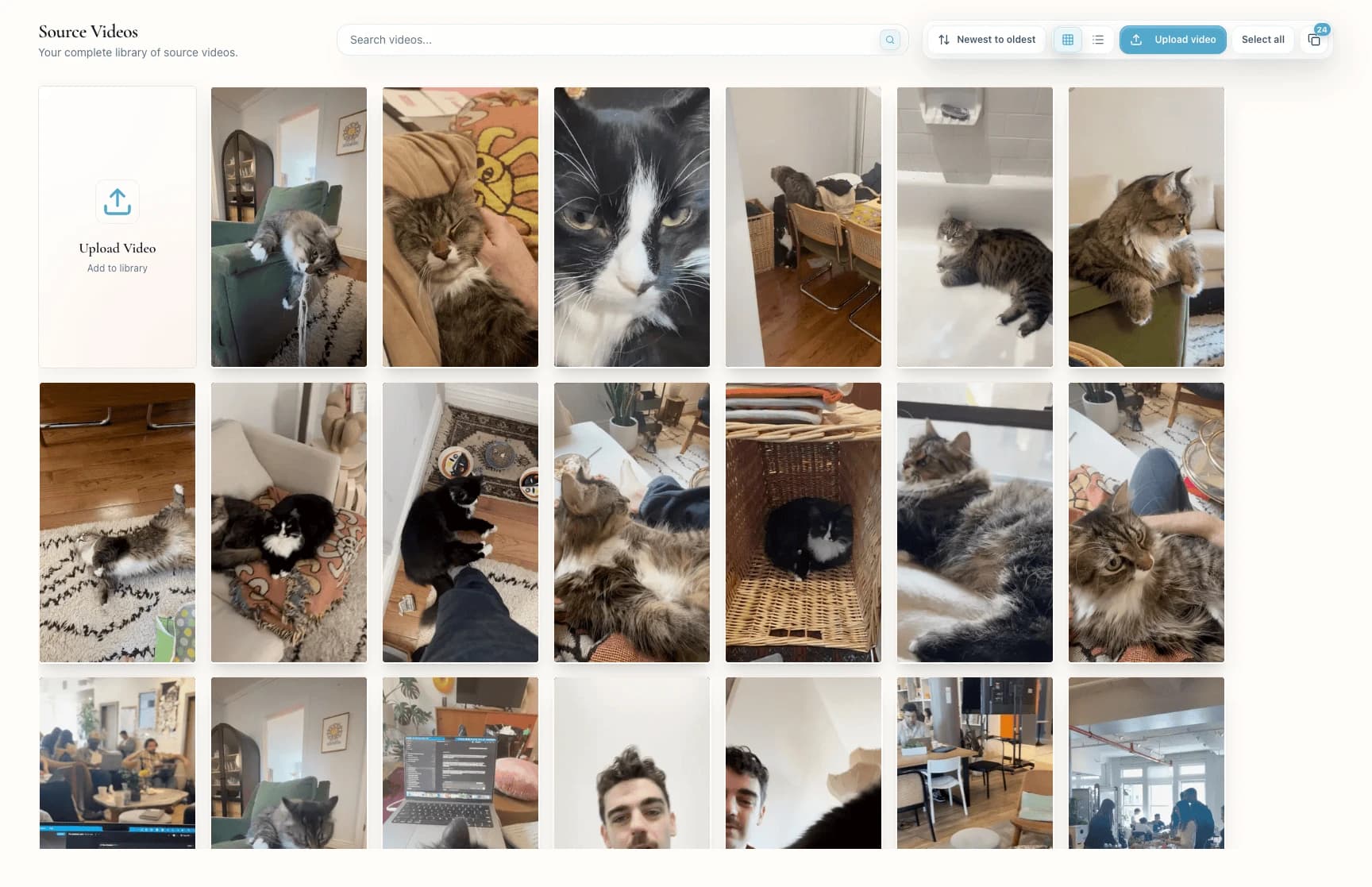
From the left sidebar, click Source Videos.
The title reads Source Videos; the action row includes Upload video when you can add footage.
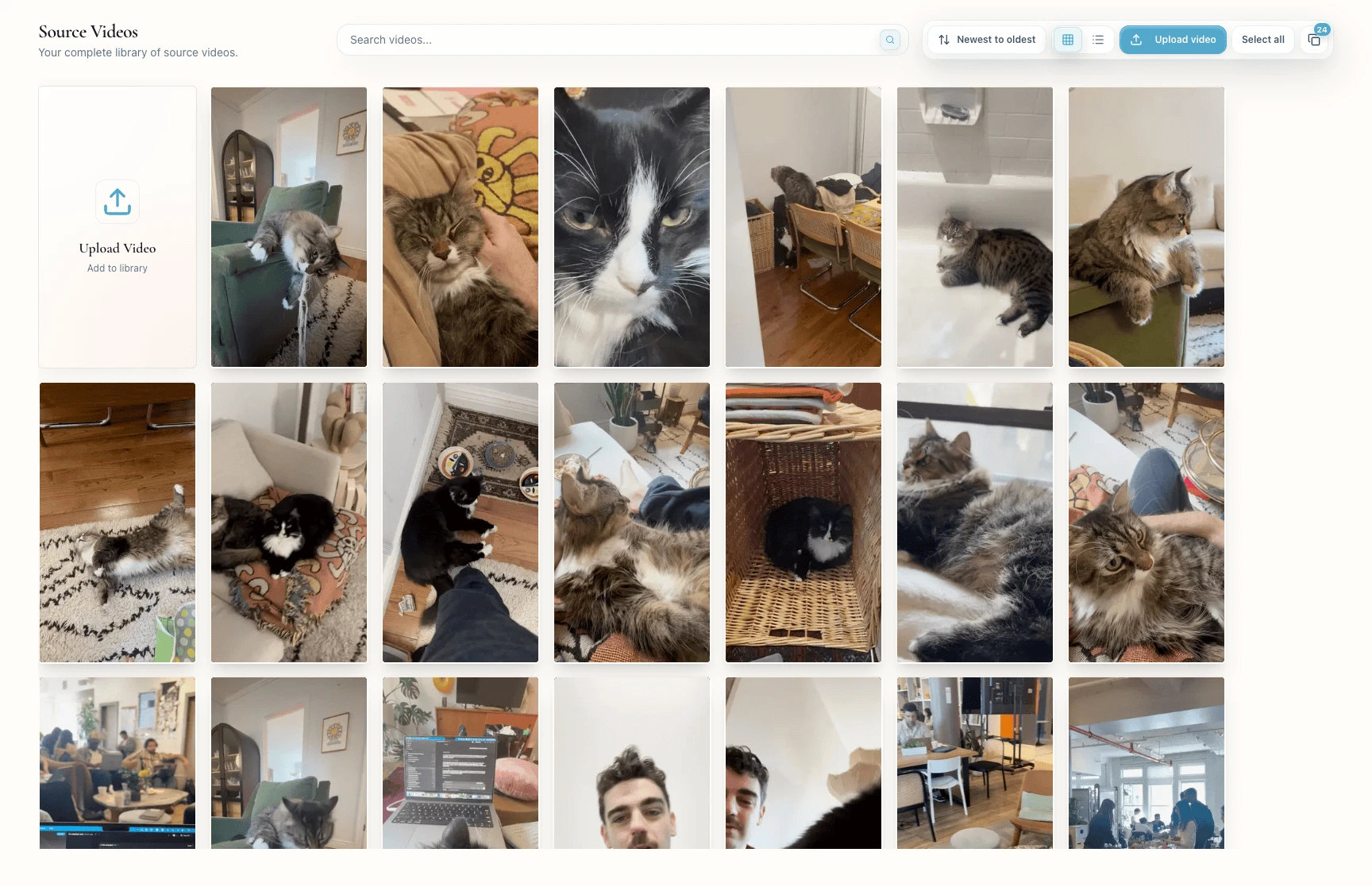
Click Upload video and choose clips.
On desktop, the dialog closes once the upload starts and progress moves to the sidebar. On mobile, the dialog stays open so you can watch each file.
The status card's title describes the whole batch:
Uploading videos: file data is still leaving your browser.Preparing videos: the upload landed; Bevyl is readying it for editing.Uploads complete: uploading is done, though videos may still be preparing.Upload failed: one or more files did not make it — click Retry failed.If the card adds Still uploading. Large videos can take longer., keep the tab open.
The card lists up to five active items — failed first, then uploading, analyzing, ready, and complete.
Each label tells you what to do:
Uploading: keep the tab open.Analyzing: Bevyl has the file and is preparing it.Uploaded: that file's upload finished.Failed: click Retry failed, or upload the file again.Queued: the video waits its turn for analysis.Ready: the video is available to edit.With more than five active items, the card shows +N more — and counts any hidden failures in that line.
Videos being analyzed show Analyzing video… on their card; in list view, the pill reads Analyzing.
A ready video shows See analysis, which opens its detail page.
Error means analysis failed — re-upload the clip, or contact support if it fails again.
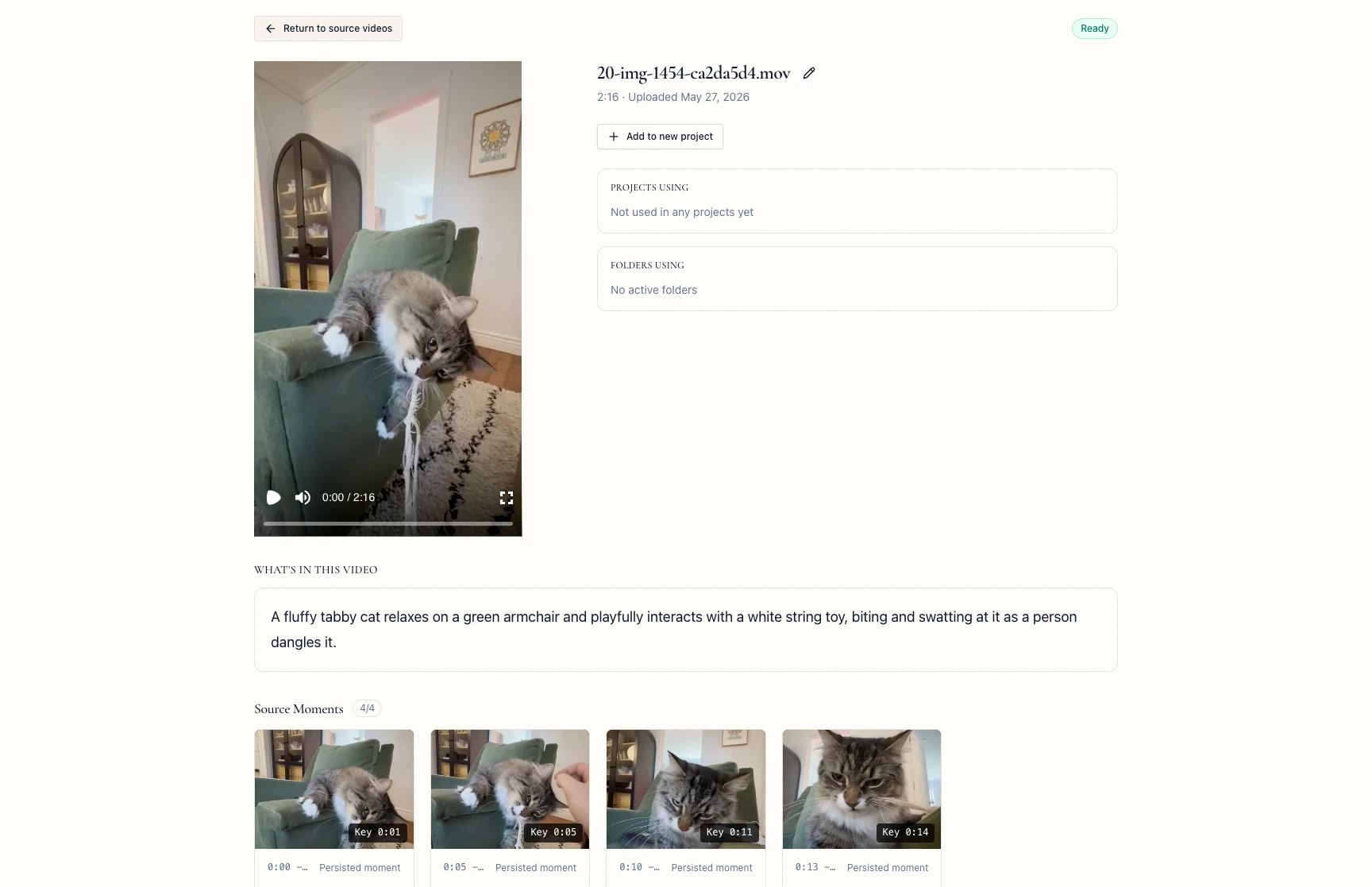
Click See analysis on any card.
The status sits near the top of the page; a ready video reads Ready.
While the batch is active, select Email me when all videos are ready. and go — Bevyl will write when preparation finishes.
Upload failed: click Retry failed; if it fails again, check the file size, type, and your connection.Analyzing never changes: give large videos a few minutes with the page open.Error: upload a fresh copy, or contact support with the video name and workspace.You can tell which videos are still moving, which need action, and which are ready to edit.
Next actions:
Source Videos.Ready.