Setup
- Sign in to the workspace that should hold the footage.
- Required files or assets: source videos on your computer —
MP4, MOV, or WebM. - Review your files and remove duplicates first: Bevyl uploads everything you select, relevant or not.
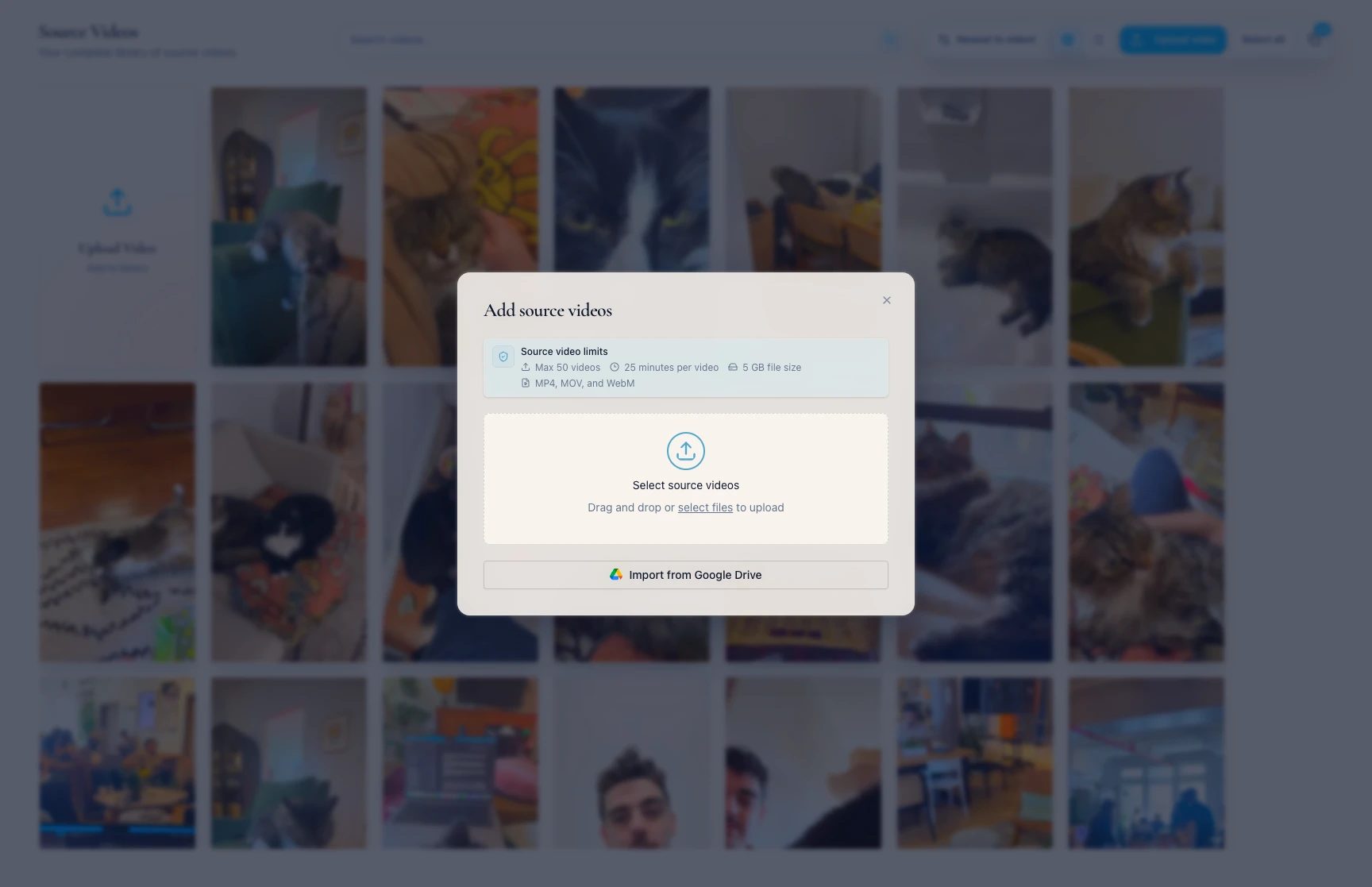
- The upload dialog lists the workspace limits for video count, duration, and file size.
Step by step
1. Open Source Videos
From the sidebar, click Source Videos.
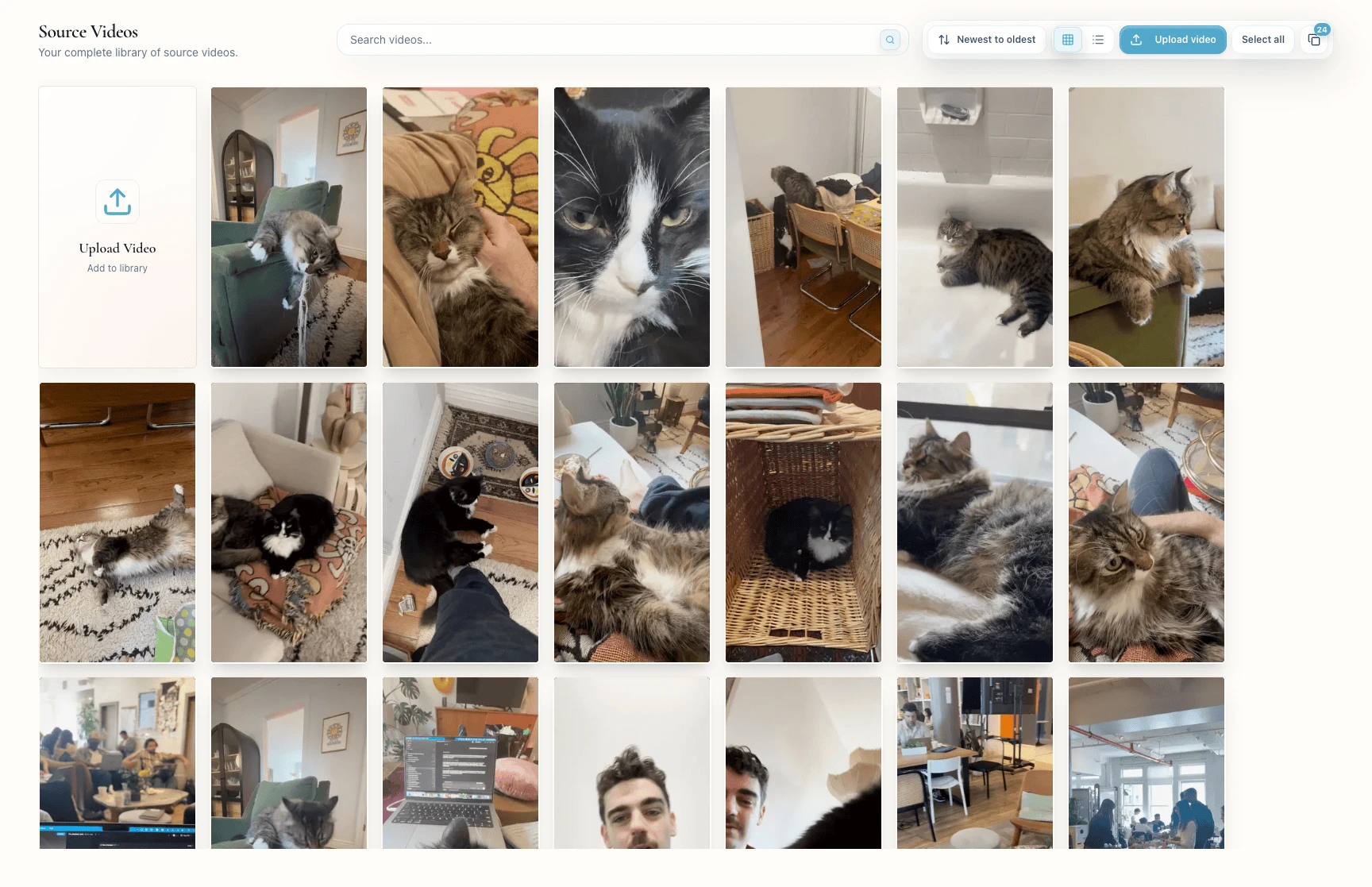
The title reads Source Videos; the action row holds search, sorting, view controls, and Upload video.
2. Open the upload dialog
Click Upload video.
The Add source videos dialog opens, with Source video limits at the top.
3. Choose videos from your computer
Click Select source videos and choose your videos, or drag them into the area marked Drag and drop or select files to upload. You can pick several videos at once, and you can keep adding more after the first selection.
On desktop, nothing uploads yet: the dialog lists everything you queued, so you can remove a video with the X beside it before you start. On a phone, the upload begins as soon as you finish selecting.
If Bevyl rejects a file, remove it or match a replacement to the limits in the dialog.
4. Start the upload
On desktop, click the upload button at the bottom of the dialog. It counts what you queued, such as Upload 3 files, and everything you selected uploads together as one batch.
On a phone there is no button to click, because the upload already started.
5. Keep the tab open while Bevyl uploads
On desktop, the dialog closes once the upload starts and Source Videos shows each file as it uploads and prepares. On mobile, the dialog may stay open.
If Bevyl says Still uploading. Large videos can take longer., leave the tab open until it finishes.
6. Wait for the videos to become ready
After the upload, Bevyl prepares each video for editing; cards show Analyzing and Analyzing video… meanwhile.
A ready video's card shows See analysis. Click it: the detail page reads Ready with Add to new project.
Ready means the file can be used — not that the footage is relevant, sharp, or right for your next project. Judge that yourself.
If one file fails while others succeed, handle it separately; the ready videos stay ready.
If something blocks you
- The picker rejects a file: use
MP4, MOV, or WebM. - The file is too large: upload a version under
10 GB. - The batch is too large: upload
50 or fewer videos at a time. - Wrong or duplicate footage went up: leave it unselected when you create the project.
- The upload seems stuck: keep the tab open while cards show
Analyzing or Analyzing video…. - A video is missing from project creation: its detail page must read
Ready first. - The upload failed: retry from the upload card, or try a smaller supported file.
Done
Every video you need shows See analysis, and its detail page reads Ready. There is no batch-level summary — sweep the library for failed, duplicate, or unwanted files before you create a project.
Next actions:
Related articles
