Setup
- Sign in to the workspace where you want to create the draft.
- Required files or assets: at least one ready source video in
Source Videos. - For
Narrated Story, have a voice profile ready. - For
Trending Sounds, your workspace must load published trends so you can pick a sound and read its recipe.
Step by step
From Projects, click Create project.
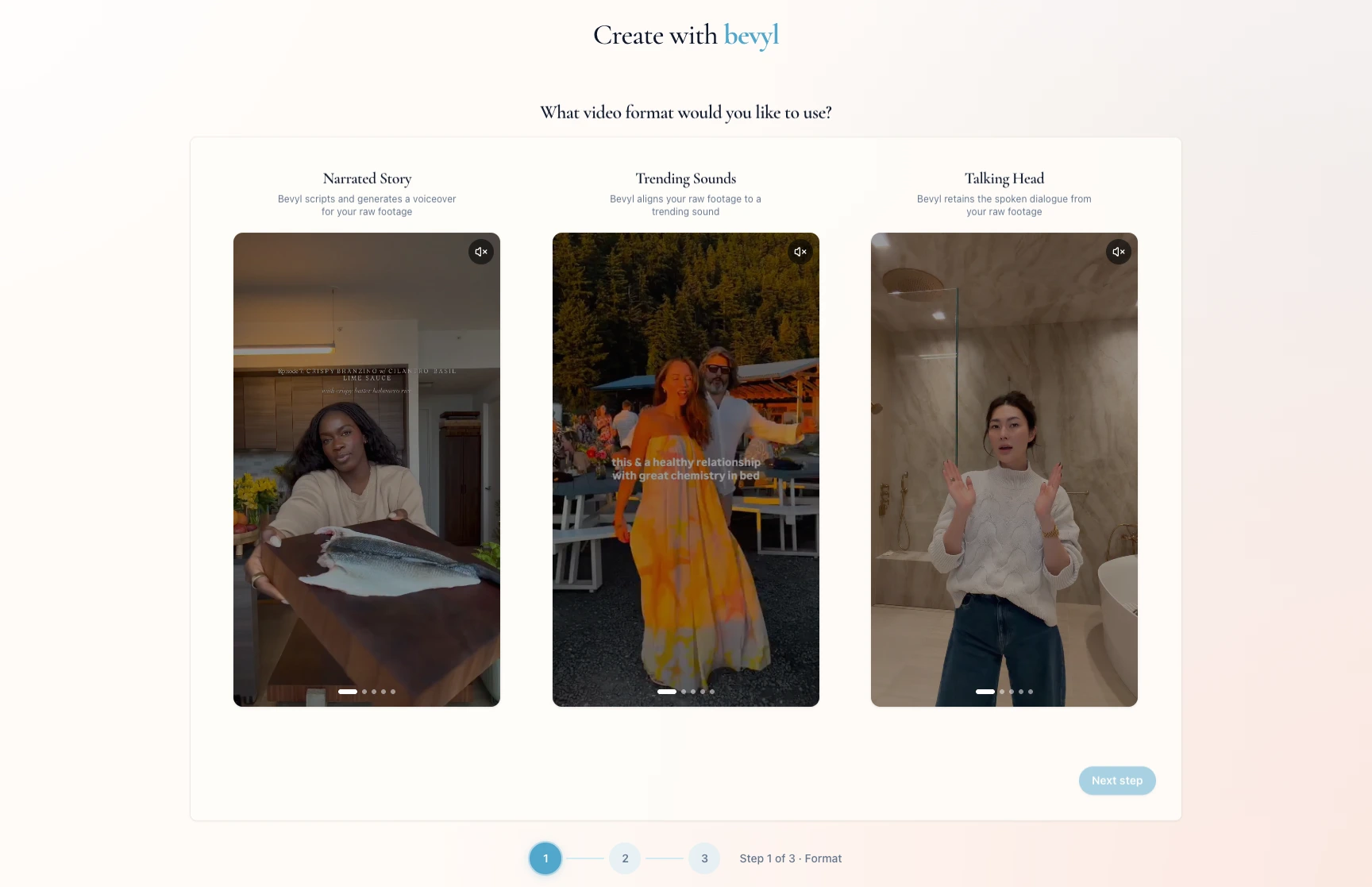
On What video format would you like to use?, choose Narrated Story, Talking Head, or Trending Sounds.
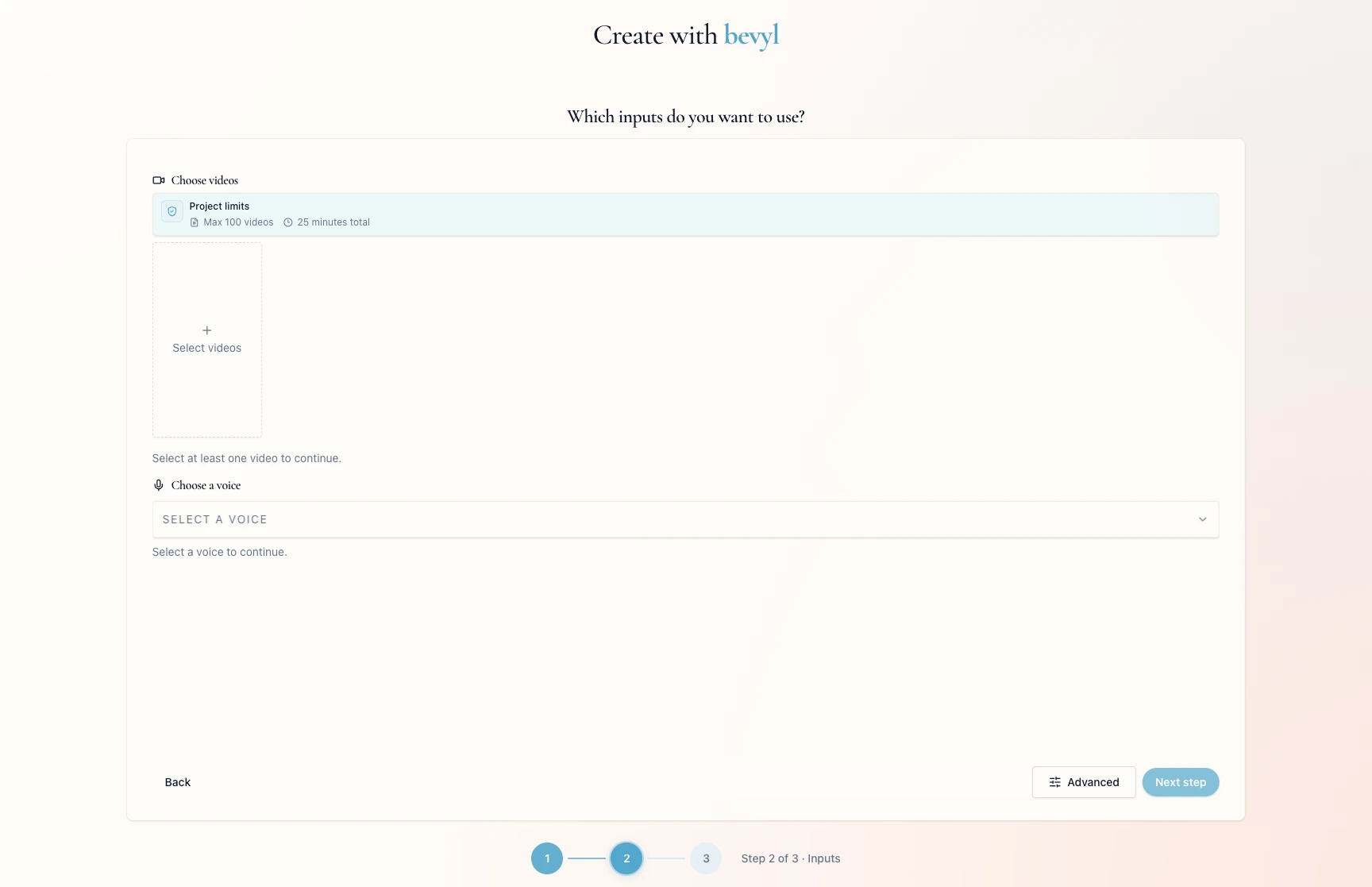
Bevyl opens Which inputs do you want to use?.
2. Select source videos
Under Choose videos, click Select videos.
Pick one or more ready source videos and confirm.
The footage appears in Choose videos.
3. Complete the audio choice
Each format asks for a different audio decision:
| Format | Audio section | What to do |
|---|
Narrated Story | Choose a voice | Select a voice profile under Select a voice |
Talking Head | None | No separate audio selector appears; Bevyl uses the original audio from your selected footage |
Trending Sounds | Select a trend sound | Choose the trend recipe Bevyl should follow for sound, length, rhythm, and pacing |
For Narrated Story, click Select a voice and pick a profile. Need a new one? Follow the prompts to create it, then return to the create flow.
For Trending Sounds, click Select a trend sound and read each trend card before you choose. Cards state the sound length, the rough number of raw moments, the footage to bring, and how Bevyl cuts to the rhythm.
Some trends demand more varied footage than others. If the recipe calls for many distinct moments, bring clips with enough faces, product shots, reveals, actions, and details to match the trend.
For Talking Head, skip this step — no audio selector appears.
4. Continue to the prompt
Check the required selections:
Narrated Story: a video and a voice profile.Trending Sounds: a video and a trend sound recipe.Talking Head: a video.
Click Next step when it activates.
The prompt step opens, ready for you to describe the video.
If something blocks you
Select at least one video to continue.: pick footage under Choose videos.Select a voice to continue.: pick a voice profile under Choose a voice.Select a trend to continue.: pick a trend under Select a trend.Next step stays disabled: one of your format's required selections is missing.- The picker is empty: upload source videos first, then return to
Create project.
Done
The prompt step is open, and your inputs and audio path are set.
Related articles
