Setup
- Sign in to the workspace whose brand fonts you want to update.
- Required files or assets: a
.ttf, .otf, .woff, or .woff2 font file.
Step by step
1. Open Brand Kit
From your workspace, open Brand Kit.
The page shows Identity on the left and asset tabs on the right.
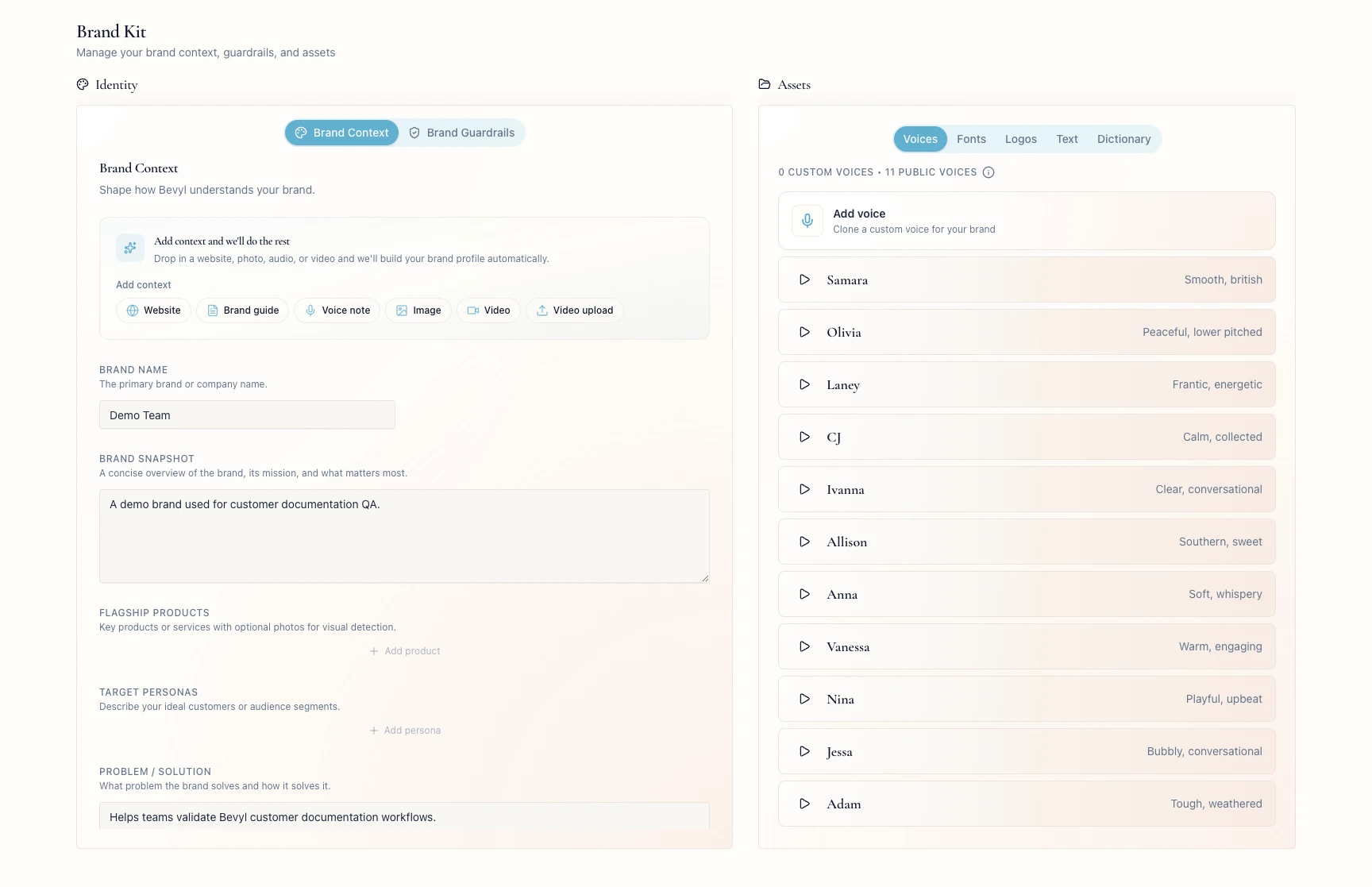
2. Go to the Fonts tab
On the right side of the page, click Fonts.
If no fonts are saved yet, the tab shows Upload font.
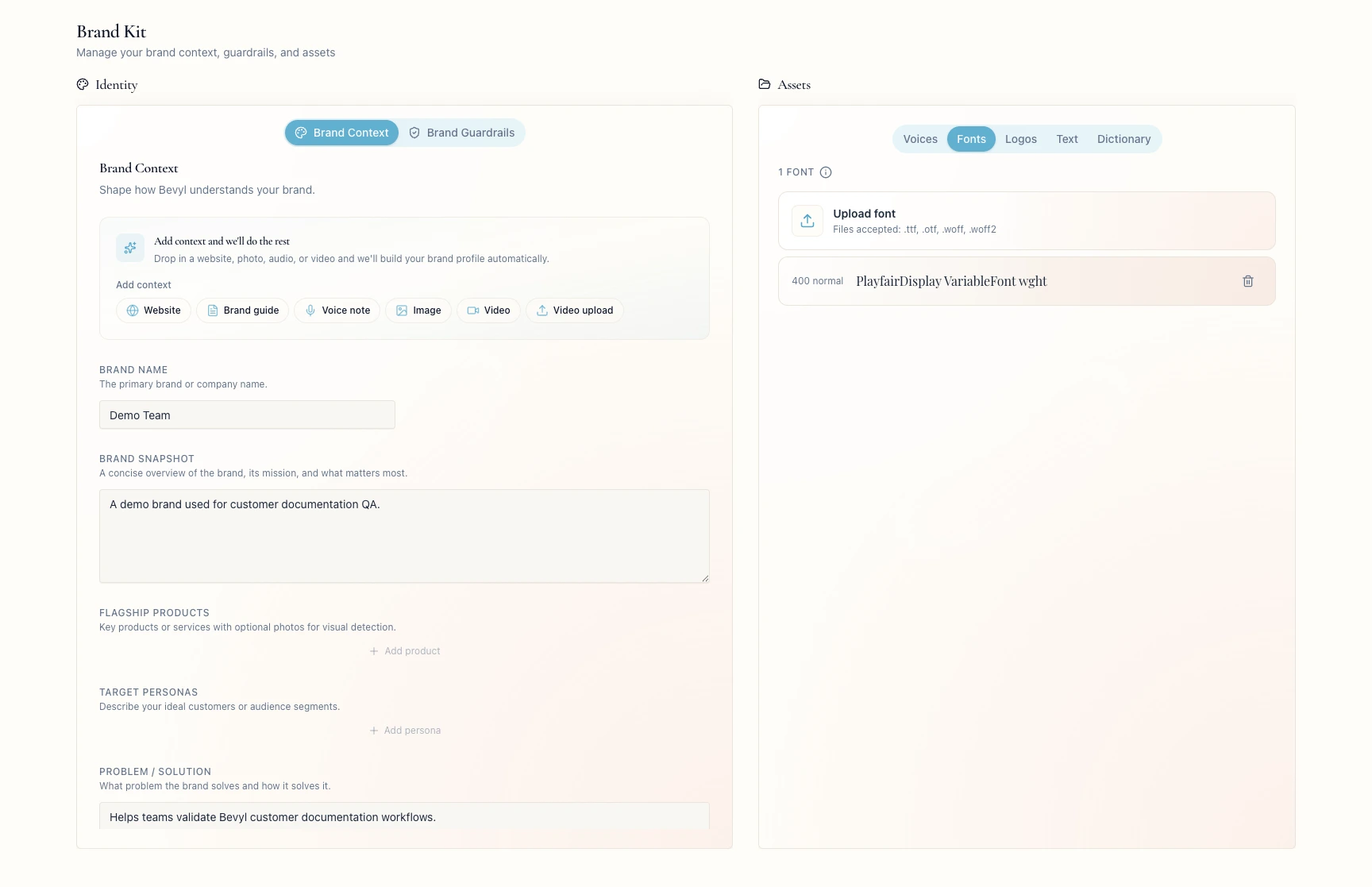
3. Upload a brand font
Click Upload font and pick the font file from your computer.
4. Confirm the font saved
The font appears in the Fonts tab once saved.
5. Remove a font you no longer need
Click the trash icon on the saved font.
Bevyl drops it from Brand Kit.
If something blocks you
Upload font is missing or disabled: confirm the workspace has Brand Kit access.- The file is rejected: use
.ttf, .otf, .woff, or .woff2. - The wrong workspace is open: switch workspaces, then upload again.
Done
The font appears in Fonts for this workspace.
Next actions:
- Add logos from the
Logos tab. - Add voices from the
Voices tab.
Related articles
