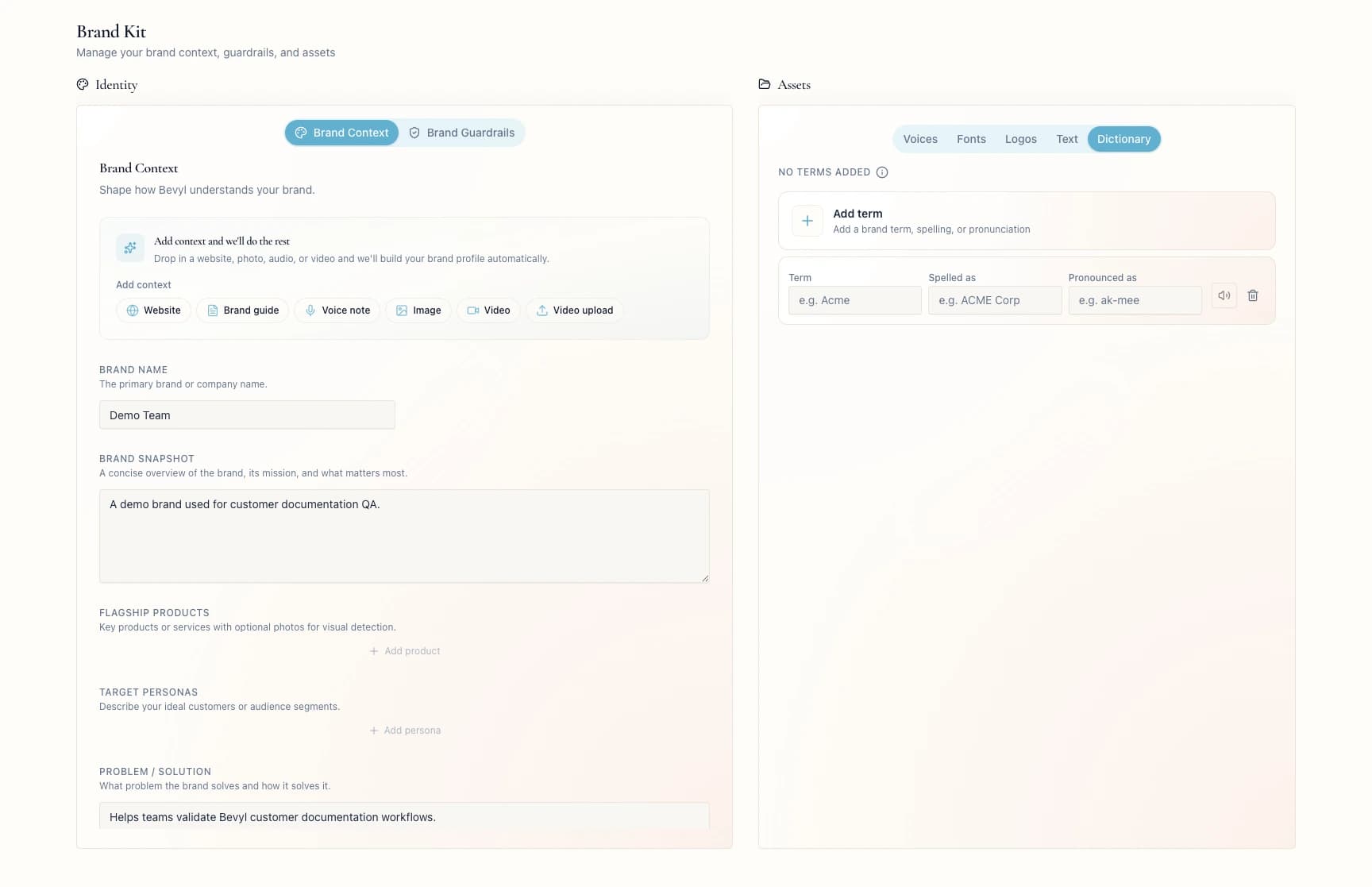
Setup
- Sign in to the workspace whose pronunciation rules you want to change.
- Confirm the workspace includes the Brand Dictionary feature.
- Required files or assets: none. Prepare each term, spelling, and pronunciation. Each field accepts up to 120 characters.
Step by step
1. Open Brand Kit
From the sidebar, open Brand Kit.
2. Open Dictionary
Click Dictionary.
A workspace with no entries yet shows No terms added.
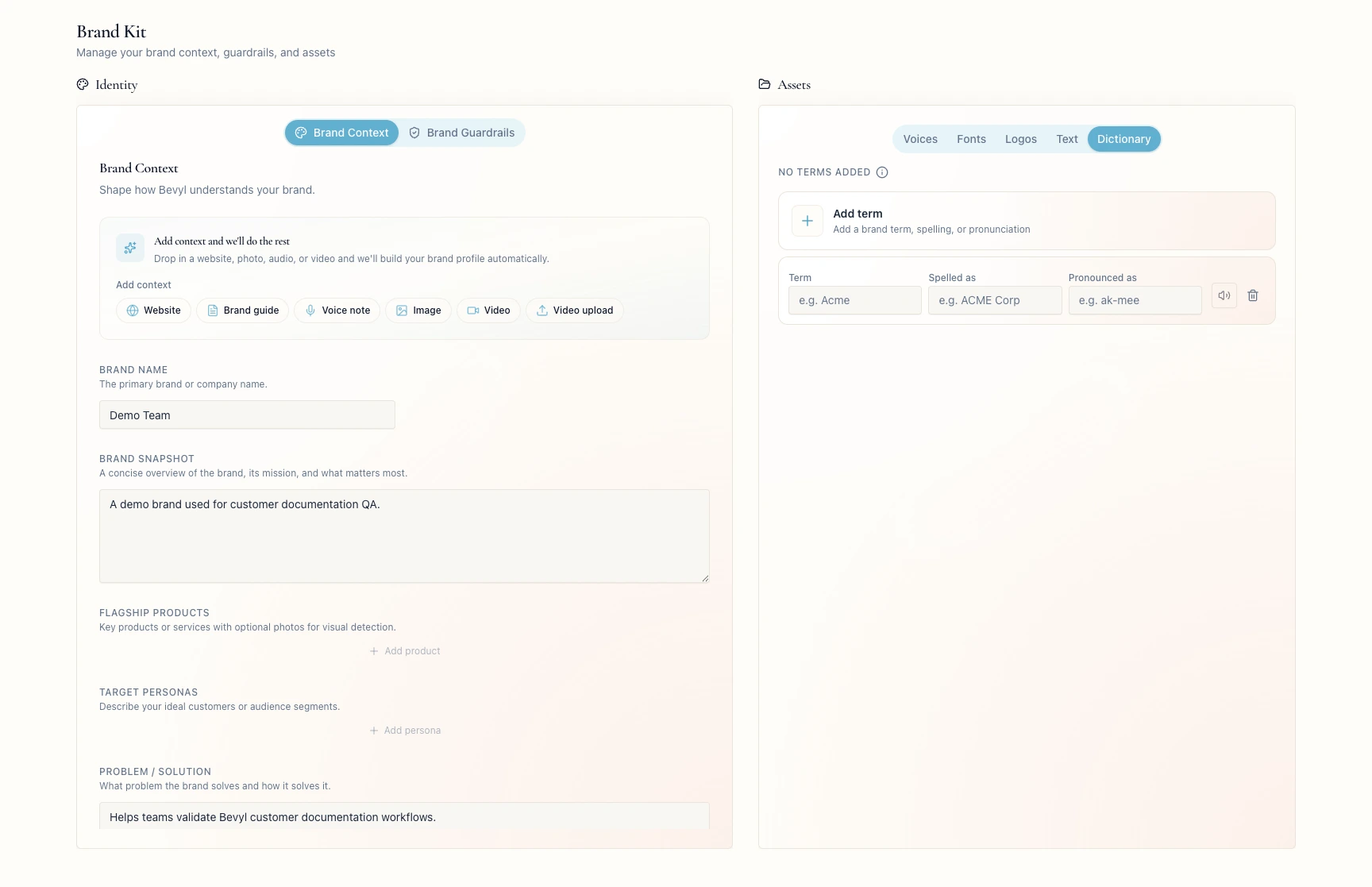
3. Add a term
Click Add term and type the word in Term.
Use a company name, product name, or branded phrase Bevyl should recognize.
4. Add spelling and pronunciation guidance
Fill Spelled as if scripts and captions should write the term a specific way.
Fill Pronounced as — phonetically — if voiceover should say it a particular way.
Rows autosave when you stop typing; let the save finish before you leave the page.
5. Preview the pronunciation
With Term and Pronounced as filled, click Preview pronunciation.
Listen to the preview. Edit Pronounced as and preview again until it sounds right.
6. Remove terms you no longer need
Click the Remove term trash icon on a row to delete it.
Spelled as guides generated scripts and captions; Pronounced as guides voiceover.
If something blocks you
Dictionary is missing: your workspace may lack Brand Dictionary access.Preview pronunciation is disabled: fill both Term and Pronounced as, then let any save finish.Duplicate term (case-insensitive). Please use a unique term.: change or delete one of the duplicates.- Typing stops registering: you hit the 120-character limit — shorten the entry.
- A term will not save: remove duplicates and wait for the autosave to finish.
Done
Every row carries the spelling and pronunciation you want Bevyl to follow.
Next actions:
- Add the product, founder, and brand names voiceover most often gets wrong.
- Generate a draft and listen for the corrected terms.
Related articles