Setup
- Sign in to the workspace whose product and audience details you want to update.
- This guide covers
Flagship Products, Target Personas, and Spokesperson. - Required files or assets: none. Optional photos: PNG, JPG, or WEBP, under 10 MB.
Step by step
1. Open Brand Kit
From the sidebar, click Brand Kit.
The page opens on Brand Context.
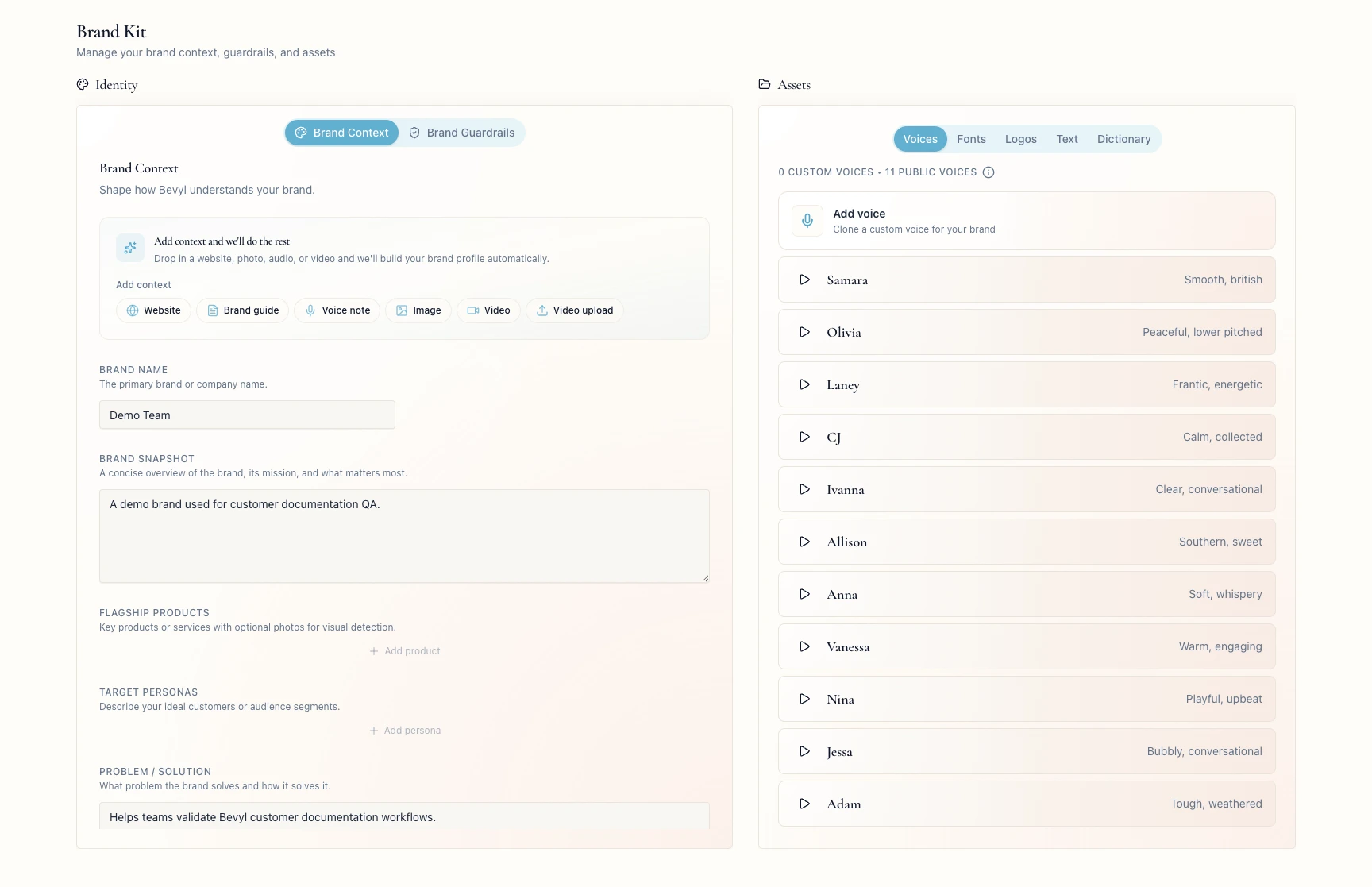
2. Confirm you are on Brand Context
Check that Brand Context is selected under Identity.
Click it if another tab is active.
Brand Guardrails holds brand rules, not products, personas, or spokespeople.
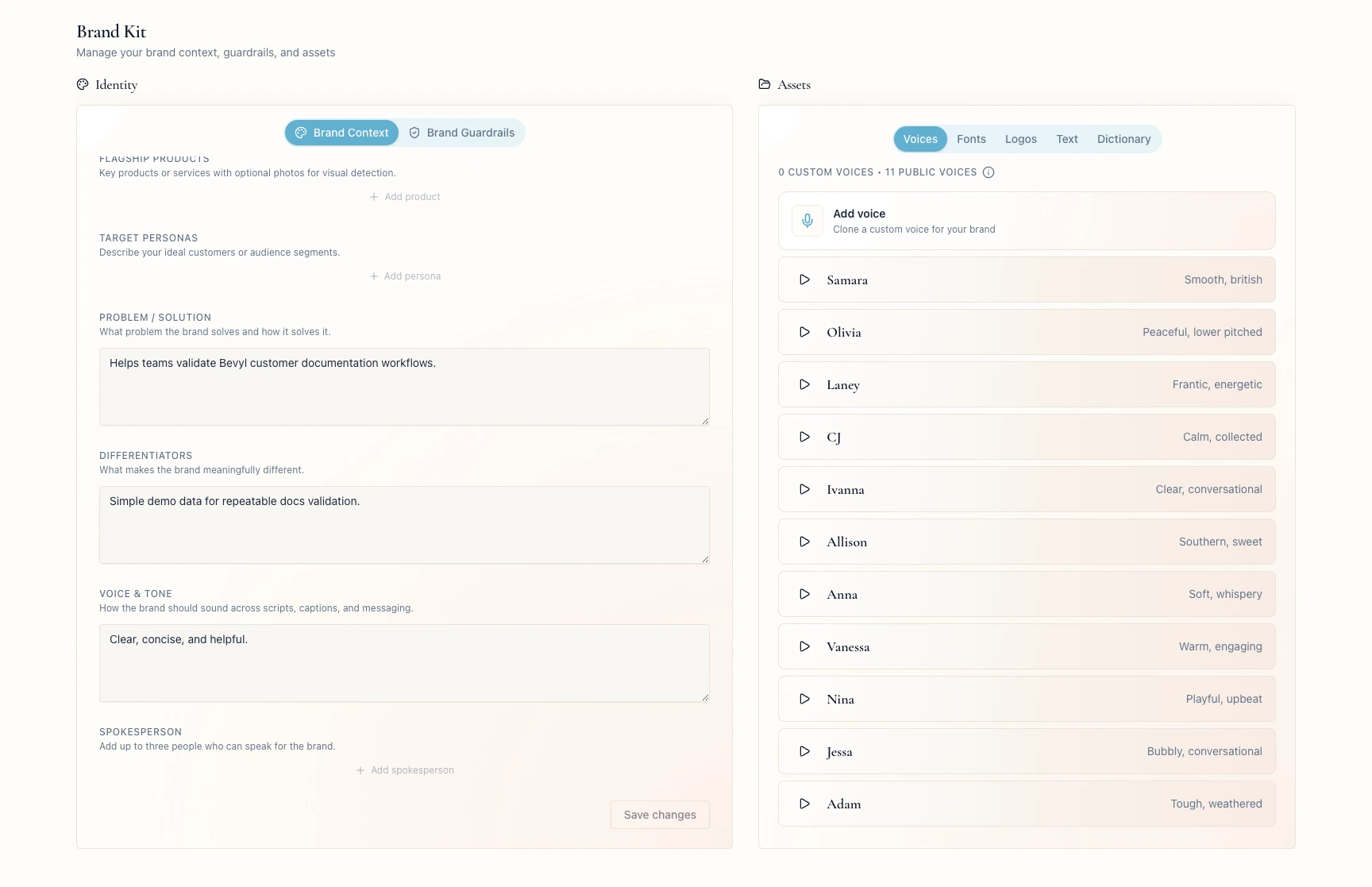
3. Add flagship products
In Flagship Products, click Add product.
Name the product, such as Concealer Shade 05.
The list caps at three; if Add product disappears, delete an old product or contact support.
4. Add a product photo when useful
Click Add photo beside the product name.
Save the brand context and name the product first. Photos take PNG, JPG, or WEBP up to 10 MB.
5. Add the target persona
In Target Personas, click Add persona.
Describe the audience, such as busy professionals who value clean ingredients.
One persona at a time; if Add persona disappears, delete the old one or contact support.
6. Add spokespeople
In Spokesperson, click Add spokesperson.
Enter each person's Name and Role — up to three people who speak for the brand.
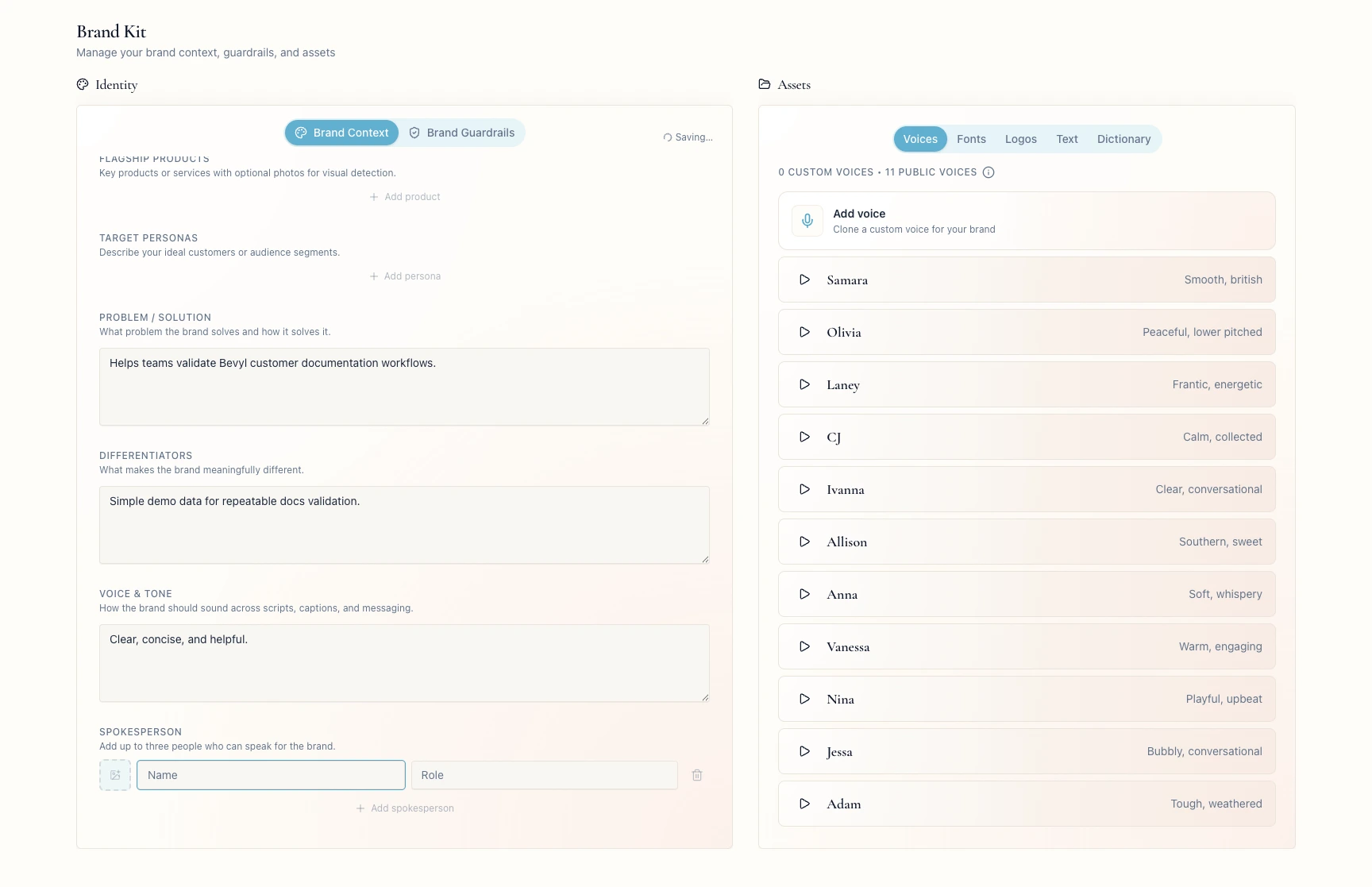
7. Save your changes
Click Save changes.
Bevyl confirms with Brand context saved.
If something blocks you
Save changes is disabled: it activates after an edit in Flagship Products, Target Personas, or Spokesperson.- A product photo will not upload: save the brand context and name the product first; keep the file to PNG, JPG, or WEBP under 10 MB.
- A spokesperson photo will not upload: save the brand context and enter the person's
Name first. - A spokesperson row shows an error: fill in both
Name and Role, or delete the row with its trash icon. - An add button is hidden: delete an older entry. The current caps are three products, one persona, and three spokespeople.
Done
Brand context saved appeared, and your entries persist in Brand Context.
Next actions:
- Revisit the core
Brand Context fields if your positioning changed. - Open
Brand Guardrails to set the hashtags, do's, and don'ts Bevyl should follow.
Related articles
