Setup
- Sign in to the workspace where you manage teammates.
- Use an owner account to change roles or manage pending invites; Members can invite other Members only when
Invite Members is visible. - The workspace must allow invitations — some subscription and trial states block them.
- Required files or assets: teammate email addresses and the role each person should hold.
Step by step
1. Open Members
Open Settings, then Members.
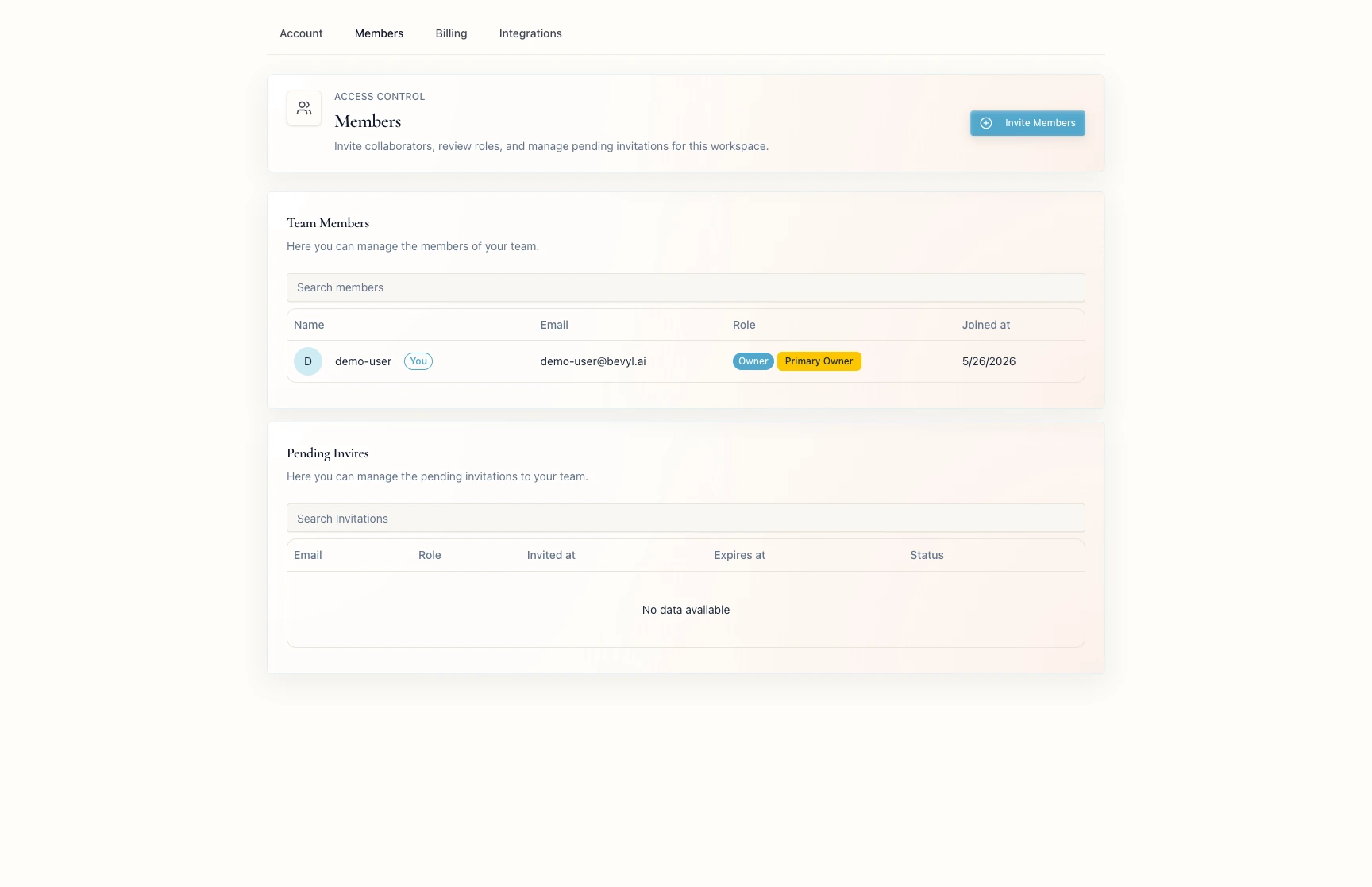
The page shows Team Members and Pending Invites.
2. Invite teammates
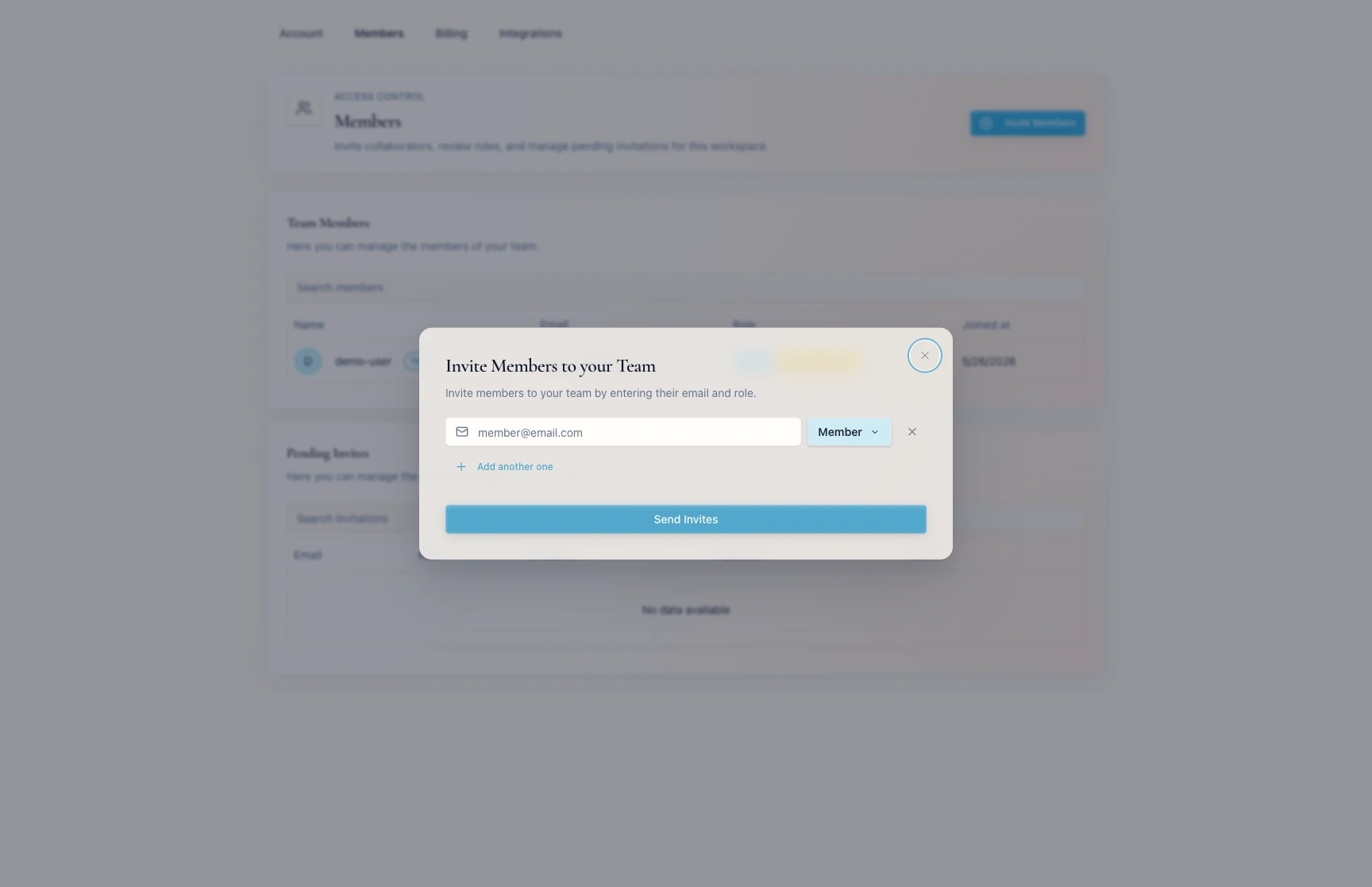
Click Invite Members and enter each address in a member@email.com field.
Click Add another one for each extra person — up to five invitations at once.
3. Choose roles
Set each teammate's role; the selector offers only the roles your account may assign.
Click Send Invites.
The roles are Owner and Member. Owners manage roles; Members can invite other Members when allowed, but cannot change roles.
4. Review pending invites and member roles
Pending Invites lists unaccepted invitations as Active or Expired.
Owners can change an existing teammate's access with Update Role, and manage pending invites with Update Invitation, Renew Invitation, and Remove Invitation.
If something blocks you
Invite Members is unavailable: ask an owner to check your role.- Invitations are blocked before the form opens: ask an owner whether the subscription or trial state allows invites.
- A teammate cannot join: an owner should check
Pending Invites — Renew Invitation for an expired invite, or Remove Invitation and a fresh invite for a wrong address. - The wrong role went out: an owner can fix it with
Update Invitation or Update Role before the teammate starts work.
Done
The invitations sit under Pending Invites, and every current teammate holds the right role in Team Members.
Related articles
