Setup
- Sign in with an account that belongs to the workspace.
- To edit settings, use an owner account or a role that can manage that tab.
- Required files or assets: none.
Step by step
1. Open the workspace picker
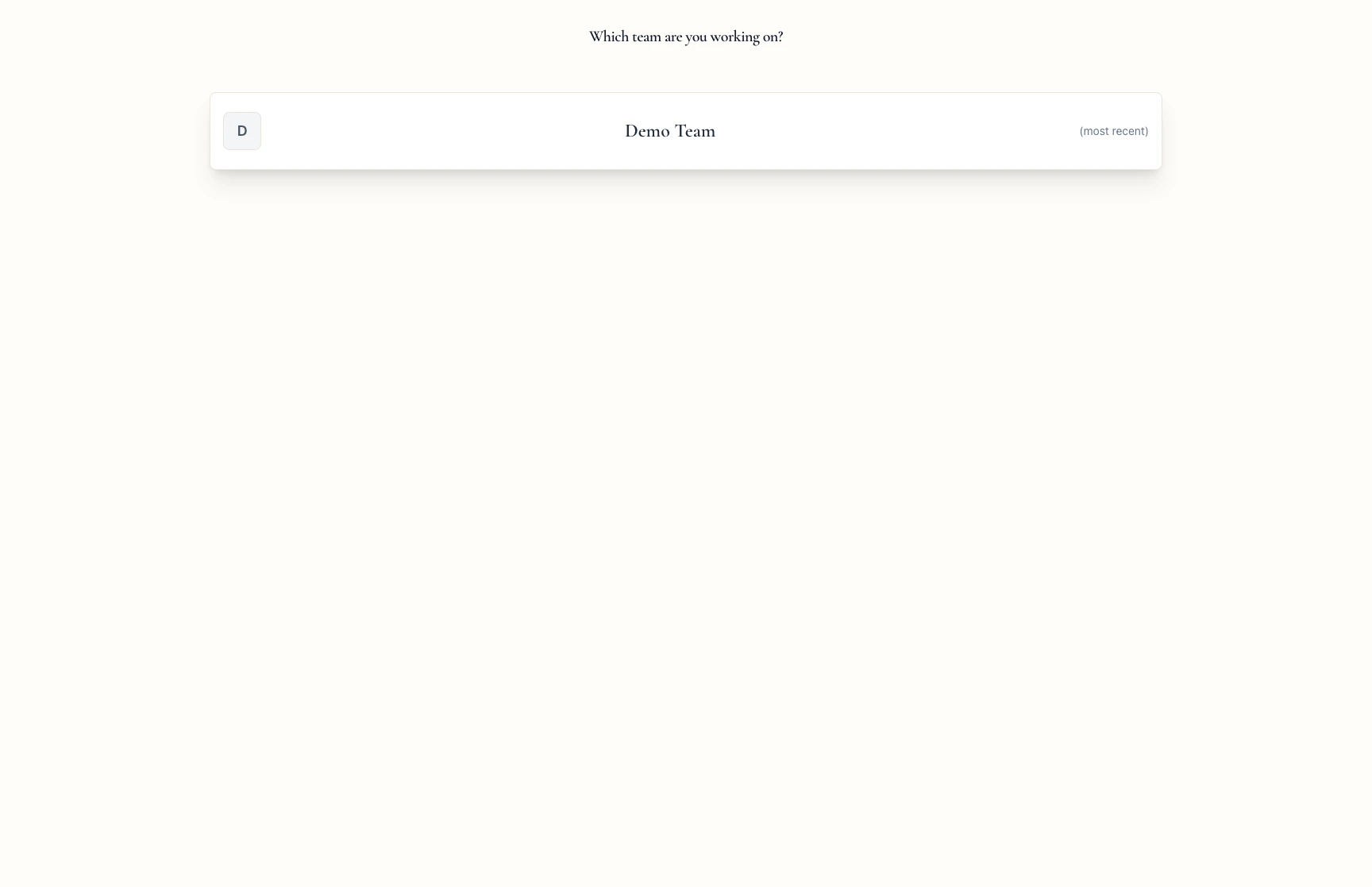
Open bevyl.ai/home/teams.
Bevyl asks Which team are you working on? and shows a card for each of your workspaces.
Pick the one you want to manage.
2. Open settings
In the sidebar for that workspace, open Settings.
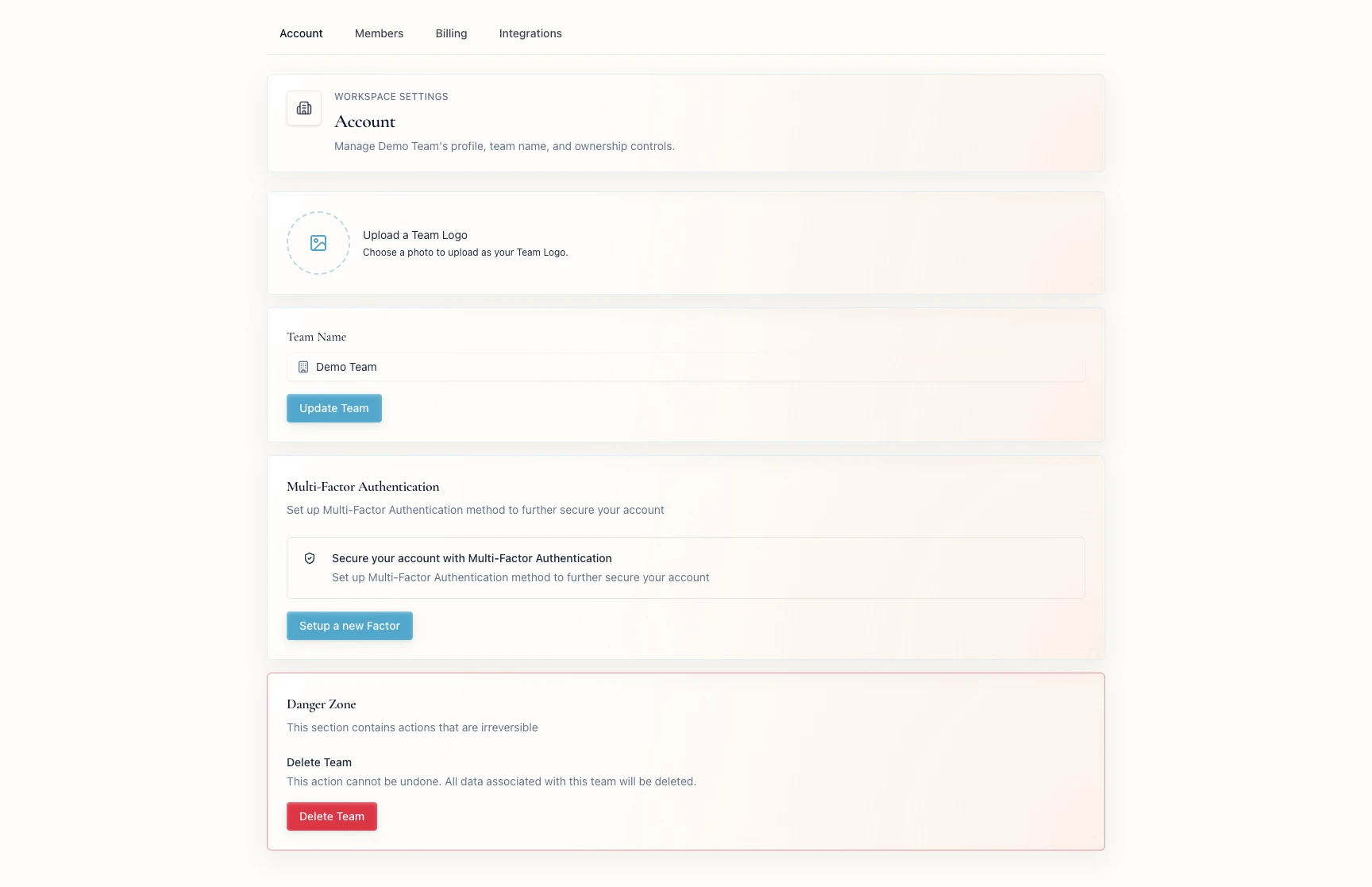
The WORKSPACE SETTINGS page has four tabs: Account, Members, Billing, and Integrations.
3. Choose the tab you need
Account: rename the team or update its profile, then click Update Team.Members: invite teammates and set roles — see Invite teammates and manage roles.Billing: review the current plan, seats, and usage for the workspace.Integrations: connect or reconnect services such as Google Drive.
If a section is read-only, ask a workspace owner to raise your role.
If something blocks you
- A workspace is missing from the picker: sign in with the email that was invited.
- Settings will not accept edits: ask an owner to check your role.
- The wrong team's settings are open: return to
bevyl.ai/home/teams and pick the right workspace.
Done
The right workspace is open with the settings tab you need.
Related articles
