Setup
- Use the email address connected to your Bevyl workspace.
- Have your password ready, or your Google account if you signed up with Google.
- If you do not see a workspace yet, ask an owner to invite this email address.
- Required files or assets: none.
Step by step
1. Open sign-in
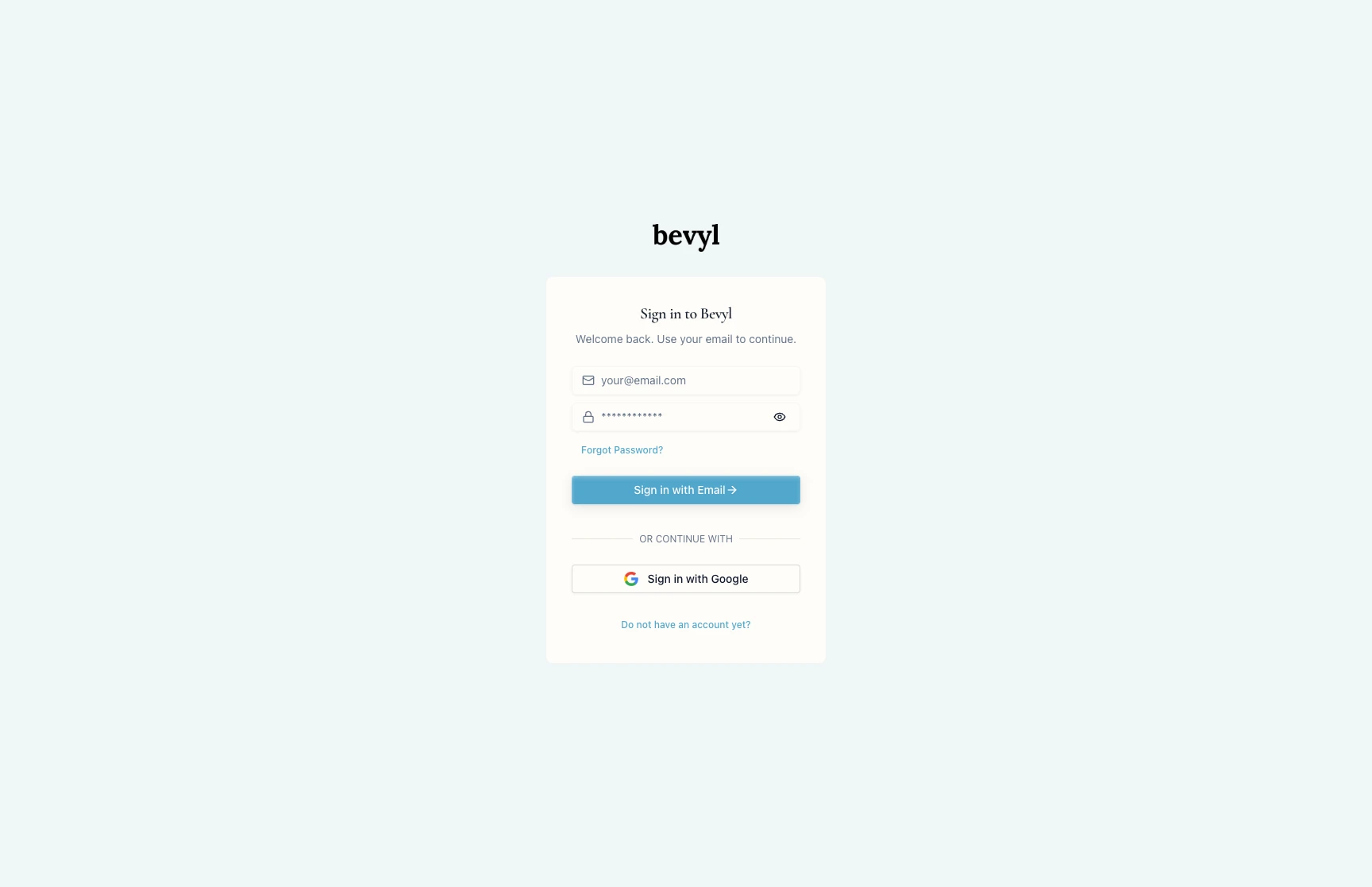
Open bevyl.ai/auth/sign-in.
Enter your email and password, then click Sign in with Email.
If your account uses Google, click Sign in with Google instead.
2. Choose the workspace
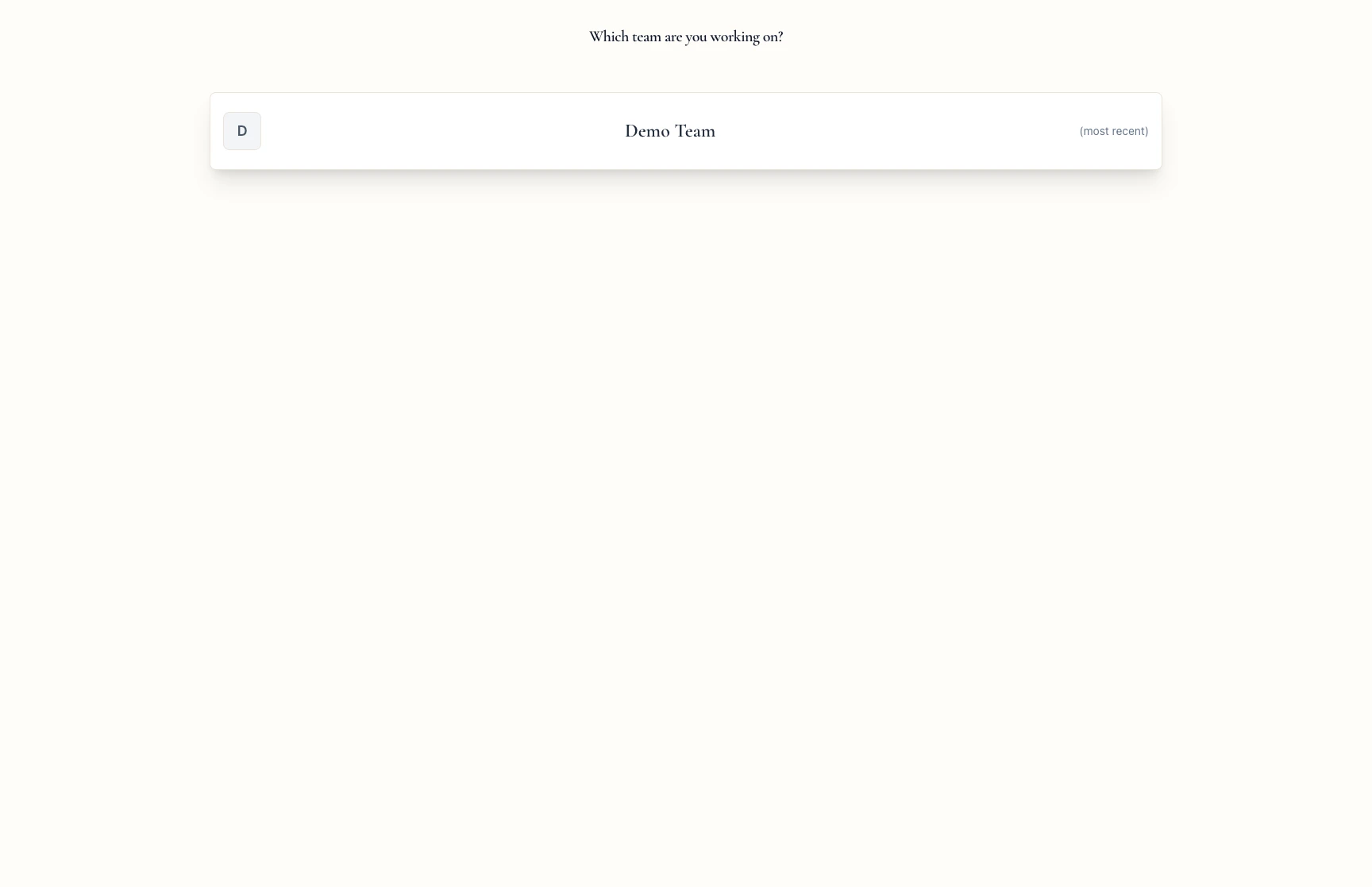
Bevyl asks Which team are you working on?.
Pick the workspace you came to work in.
3. Confirm the workspace opens
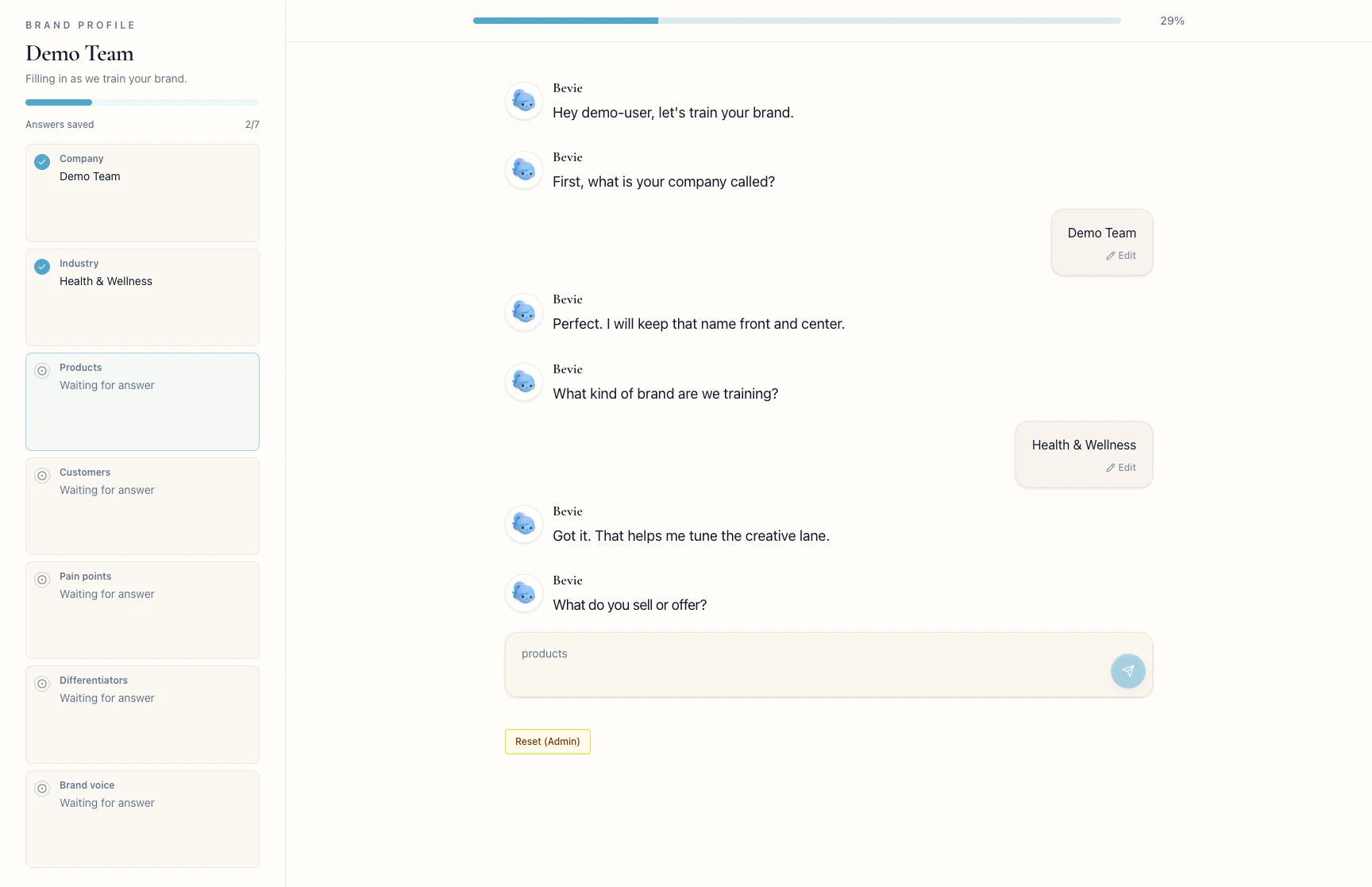
Check that the open workspace is the team you picked.
If onboarding appears first, finish it. Then use Home, Brand Kit, Source Videos, Projects, or Settings.
If something blocks you
- The workspace is missing: ask an owner to invite the email you signed in with.
- You forgot the password: click
Forgot Password? on the sign-in page. - You picked the wrong workspace: return to the picker and choose again.
Done
The right workspace is open, or onboarding is ready to complete.
Related articles
